.png?width=200&height=150&name=campspotlogo2019%20(1).png)
Summary
Explore Campspot's powerful Day-use Add-ons feature, designed to enhance your guests' experiences and boost revenue streams.
Day Use Add-Ons give parks the flexibility to sell activities and amenities for shorter timeframes—like a single day or time-based rental—rather than only overnight. This makes it easier to align offerings with how guests actually use your park and opens up new revenue opportunities.
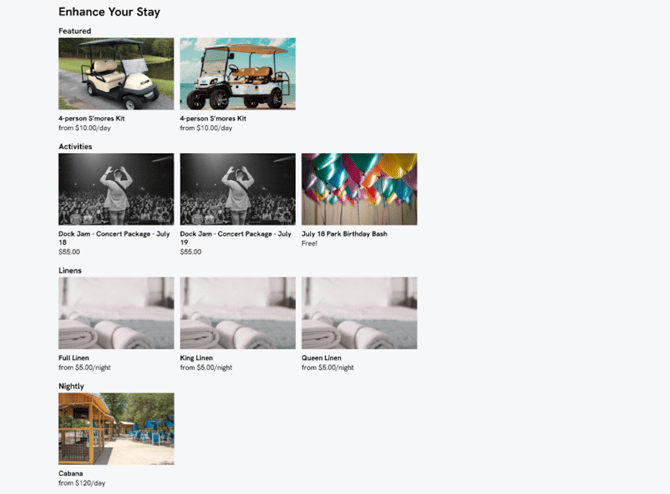
CONTENT
Below is a list of the content that you'll find throughout this article. For quick access to a specific topic, click the topic below and you'll jump forward to that section:
- Benefits and Value
- Ease of Use
- Common Day-use Add-ons
- Use: How To Sell Time-Based Amenities
- Use: How To Set Up a One Time Event
- Use: How To Set Up a Day-Long Add-on
- Use: How To Set Up Seasonal vs. Peak Season Schedules and Prices
- Use: Splitting an Add-on into Part Night and Part Day-use
- Frequently Asked Questions
New To Day-use Add-ons? Check Out these articles to learn more:
Benefits and Value
Day Use Add-Ons give parks more flexibility to sell and manage experiences that don’t fit an overnight format.
-
-
Offer more flexible experiences: Create add-ons that apply to specific days or time slots.
-
Match how guests actually use amenities: Perfect for short-term rentals, single-day activities, or one-time events.
-
Increase revenue opportunities: Open up new ways to earn ancillary revenue.
-
Simplify pricing and management: Create multiple add-ons labeled with different times or dates, making it easier to manage inventory and pricing.
-
Enhance the guest experience: Allow guests to personalize their visit by adding just what they need, when they need it.
-
Ease of Use
- Flexible Booking: Guests can conveniently select Day-use Add-ons during the booking process on both the Consumer Site and Admin Site.
- Effortless Setup: Campground managers can easily set up Day-use Add-ons through Campground Setup, ensuring a smooth process
Common Day-use Add-ons
Below is a list of the some common Day-use Add-ons used today:
| Golf Carts | Pavillions |
| Kayaks | Pool Cabana / Hammock Rentals |
| Tubes | Event Passes |
| Paddle Boards | Activity Passes |
Practical Uses For Day-use Add-ons
Use 1: How To Sell Time-Based Add-ons
Use this setup to offer activities or rentals that are available in specific time slots — like kayak, paddleboard, or golf cart rentals that can be booked for part of the day.
Step 1: Create Separate Day-Use Add-Ons for Each Time Slot
Create a new Day-Use Add-On Type for each available time period. Each time slot should have its own title and configuration.
Example:
-
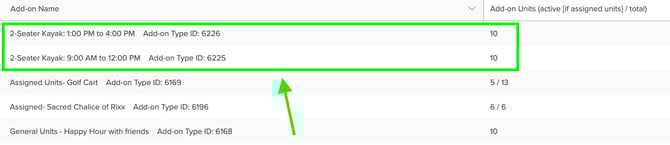
2-Seater Kayak — 9:00 AM to 12:00 PM
-
2-Seater Kayak — 1:00 PM to 4:00 PM
💡 Tip: If you have 10 kayaks, enter a quantity of 10 for each Day-Use Add-On Type since they’re used at different times.
Step 2: Management Inventory
During setup, give thought to how you manage inventory. Quantities cannot be transferred between time slots (for example, from the 9 AM–12 PM slot to the 1 PM–4 PM slot). However, you can adjust quantities at any time on the Add-On Type Configuration page or by using an Admin Hold.
Step 3: Add Guest Instructions
Use the Invoice Message field to communicate time-specific details such as when guests should check in, pick up equipment, or return items.
The image below shows an example of what these time based Add-ons look like setup in the admin site.
Use 2: How To Set Up a Day-Long Add-on
Day-Use Add-Ons are all-day by default, making them ideal for rentals or activities that last the full day such as kayak, paddleboard, or golf cart rentals.
Step 1: Create a Day-Use Add-On
Create a new Day-Use Add-On Type and give it a clear title that reflects the all-day nature of the activity.
Example: “2-Seater Kayak: All Day”
Step 2: Add Guest Instructions
Use the Invoice Message field to share important details, such as when guests should pick up or return the item.
Use 3: How To Set Up a One-Time Event
Use this setup to offer tickets or passes for a specific, one-time event like a concert, festival, or holiday activity that guests can purchase along with their reservation.
Step 1: Create a Catchy Add-On Title
Give your Add-On a clear and appealing name that highlights the event.
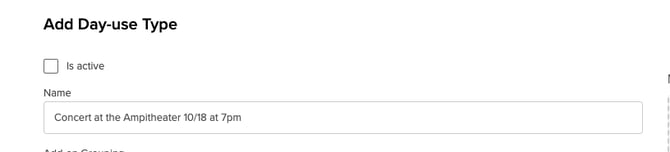
Example: “Live Music Night – Saturday, July 20” or “Fourth of July BBQ Pass.”
The image below shows an example of a named one-time event
Step 2: Configure the Add-On Type
-
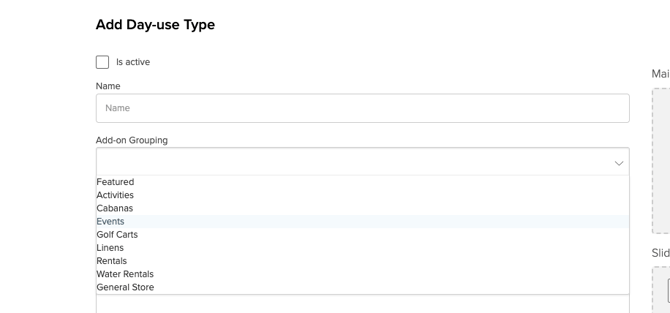
Set the Add-On Grouping to Event (or another appropriate category).
-
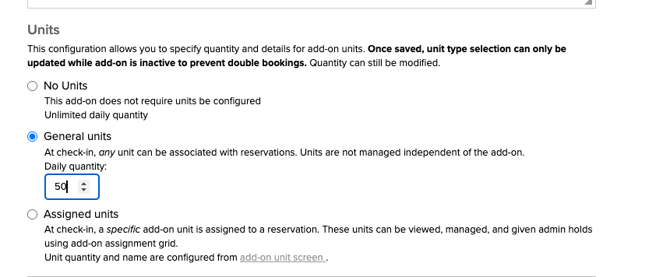
If you’re selling a limited number of tickets or spots, set a General Units quantity (for example, 50). If there’s no limit, select No Units.
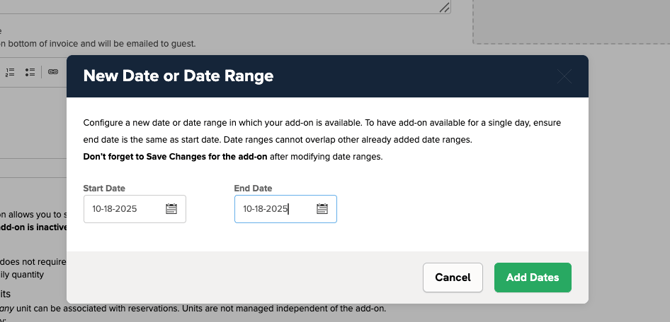
Step 3: Set the Event Date
Be sure to select the exact date of the event, to ensure it appears properly during the booking process.
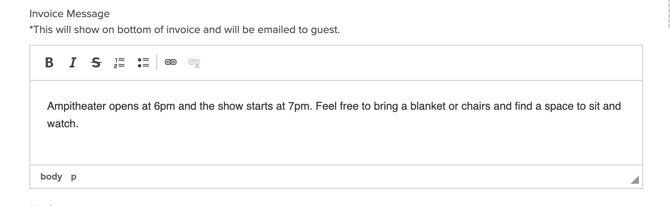
Step 4: Add Guest Instructions
Use the Invoice Message field to share key event details such as when and where to check in, what to bring, or when activities begin and end.
Use 4: How To Set Up Seasonal vs. Peak Season Schedules and Prices
Use this setup if you’d like to offer different Day-Use Add-On prices depending on the season or peak periods, for example, charging more for summer weekends or holidays.
Step 1: Select Add-on Type
Either create a new Day-use Add-on or select an existing one that you'd like to adjust schedules and pricing for.
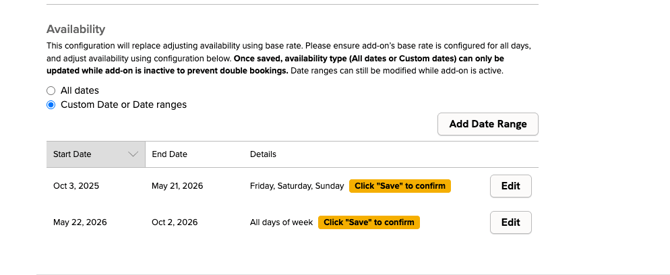
Step 2: Set Availability Based on Seasons
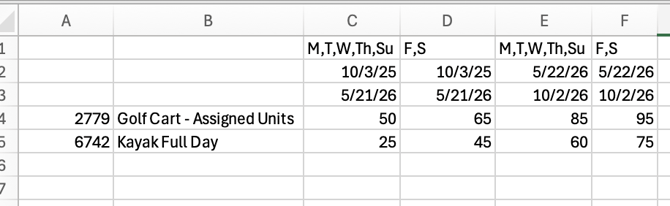
When editing or creating the new Add-on, set custom date ranges for availability based on dates of the various seasons you'd like to price for.
Step 3: Set Pricing
Use your Base Pricing Spreadsheet to assign the appropriate rates for each Add-On Type. Learn more about setting pricing [HERE].
Use 5: Splitting an Add-on into Part Overnight and Part Day-use
Use this setup when you want to offer the same add-on for both overnight stays and single-day use. This approach is ideal for items like golf carts, which some guests may want for their entire stay, while others only need for a day.
Step 1: Create the Add-On in Both Categories
Set up the Add-On under both:
-
Nightly Add-Ons (for overnight or multi-day rentals) [SETUP INSTRUCTIONS HERE]
-
Day-Use Add-Ons (for single-day rentals) [SETUP INSTRUCTIONS HERE]
You can do this in Campground Setup → Unit Setup → Add-On Types.
Step 2: Allocate Inventory for Each
Decide how many of each item you’d like to reserve for overnight vs. day-use guests.
For example, if you have 10 golf carts, you might allocate 6 to Nightly Add-Ons and 4 to Day-Use Add-Ons.
💡 Tip: Allocating inventory separately ensures availability for both overnight and day-use guests without overbooking.
Frequently Asked Questions
Q: What’s the difference between Day-Use Add-Ons and Nightly Add-Ons?
Day-Use Add-Ons are designed for rentals or activities that are booked for a single day, while Nightly Add-Ons apply to overnight stays. Some items, like golf carts, can be offered in both categories by splitting inventory.
Q: Can I create a Day-Use Add-On for part of a day?
Yes! You can set up time-based Add-Ons by creating separate Day-Use Add-On Types for each time slot (for example, 9 AM–12 PM and 1 PM–4 PM). Inventory cannot be shared between time slots, but quantities can be adjusted on the Add-On Type configuration page or via an Admin Hold.
Q: How do I set pricing for Day-Use Add-Ons?
Use your Base Pricing Spreadsheet to assign rates for each Add-On Type. Learn more about setting up pricing [HERE].
Q: Can I bundle multiple add-ons together for guests?
While there is no feature to bundle items together, you can create a single Add-on in the system but market it like a bundle. Examples of this would be things like “Family Pool & Picnic Pass” or “Kayak + Day-Use Parking.” Doing this may make it easier for guests to book multiple items while creating the perception of added value.
Q: What information should I include for guests in the Invoice Message?
Include clear instructions on when and where guests should pick up or return items, check in for events, or show up for activities. This ensures guests understand the timing and logistics for their Day-Use Add-Ons.
Q: Can I offer the same add-on for both overnight and day-use guests?
Yes! Simply create the Add-On in both Nightly and Day-Use categories and allocate inventory appropriately. This ensures availability for both types of bookings without overbooking.
Q: Are Day-Use Add-Ons automatically all day?
By default, yes. All Day-Use Add-Ons are assumed to be available for the full day unless you create separate time-based Add-On Types for partial-day rentals.
Q: How does this feature differ from the Online Store Add-ons?
Online Store Add-ons include items that are part of your Point of Sale offering in Campspot's native POS feature. Learn more about Online Store Add-ons [HERE].