.png?width=200&height=150&name=campspotlogo2019%20(1).png)
Summary:
Updating nightly rates for Day-use and Nightly Add-ons is a crucial task for maintaining a dynamic and competitive pricing structure at your campground. This guide outlines a step-by-step process, from downloading the Base Price Template for Add-Ons report to uploading the updated pricing CSV, ensuring accurate and up-to-date Add-on rates.
Please Note: As of November 2025, the Base Pricing (for Add-ons and Campsites) upload process has been updated.
This guide walks you through the updated Base Pricing workflow, explains which reports to use, and provides detailed instructions for adjusting rates across different site types or adding special rates for events.
Uses:
- Updating base pricing (nightly rates) for Day-use and Nightly Add-ons
- Troubleshoot Upload
- Learn how to enhance your Base Pricing Strategy
Learn more about Base Pricing! Check out the resources below as well:
- Nightly Add-ons: Learn about the feature
- Base Pricing: What's on the page & Feature Overview
- Base Pricing: How the Base Price Template for Campsites Report Works
- Base Pricing: Understanding Base Prices Reports
- Base Pricing: Add New Site Type
Please note: There are a lot of similarities with the processes of updating rates for both Nightly or Day-use Add-ons and Campsites. The resources above can be utilized for understanding both.
Updating Base Pricing
Campspot's Base Pricing is the foundation for setting nightly rates, ensuring accurate pricing and revenue management for campgrounds. Whether adjusting rates for different Nightly Add-ons or adding special rates for events, this article will guide you through the process efficiently. Let's get started on updating your rates!
⚠️ Important: Which Base Pricing Report to Use
This article will direct you in using a very specific report to update your rates for Day-use and Nightly Add-ons. There is a second report that looks very similar, but has very specific uses. Make sure you understand the differences:
- Base Price Template for Add-ons: This report is referenced throughout this article and is used to update existing rates and to add new nightly rates.
- Base Prices for Add-Ons: This report is used only to view existing rates. You can select a certain date range to view when downloading the report and the report will show rates for those dates on a day-by-day basis.
Learn more! Check out the resource below to learn more about the Base Prices reports:
Key changes to base pricing process as of november 2025
Key Changes in the New Upload Process (effective November 2025):
-
Pricing for both Day-use and Nightly Add-ons lives in the same place: Previously, the Base Price Template for Add-ons report only had pricing for Nightly Add-ons and now, both Day-use and Nightly Add-ons are priced via the Base Price Template for Add-ons report. While we refer to Base Pricing as “nightly pricing,” Day-use Add-ons don’t include a nightly charge — they’re charged per day instead. The setup process is still the same, and both follow the same pricing workflow.
- Base Price Template for Add-ons Use: Previously, the Base Price Template for Add-ons was only used when setting rates for the first time or when adding a new site type. With the new workflow, this template is now used for all nightly pricing updates (for add-ons).
-
Selective Updates: Only dates and Add-on types included in your upload will be updated; existing rates not in the file remain unchanged. (Previously, any dates not included in an upload could be cleared, which could unintentionally remove existing rates.)
- Simplified Logic: Each date now stores its own base rate instead of relying on grouped date ranges. When base prices are pulled, they display in a day-by-day format, making pricing data easier to review, reducing upload errors, and supporting future pricing automation.
-
$0 vs Null Rates: There are some differences in behavior when it comes to null rates and $0 rates for Day-use Add-ons and Nightly add-ons.
-
-
Day-use Add-ons
-
A Day-use Add-on type with a null base rate is visible in results and is unavailable for booking.
-
A Day-use Add-on type with a $0 base rate is visible and bookable at the $0 rate.
-
-
Nightly Add-ons
-
A Nightly Add-on type with a null base rate is not visible in results and not able to be booked.
-
A Nightly Add-on type with a $0 base rate is visible in results but not available for booking.
-
-
-
Step-by-Step Instructions:
Step 1: Download the Base Price Template for Add-ons report
- Navigate to Reporting using the primary navigation.
- Search and click on the report for “Base Price Template for Add-ons”.
- Click Run Report
Tip: Add this report as a "Favorite" by clicking the star to the left of the report title.
Step 2: Update pricing in the Base Price Template for Add-Ons report
- Open the downloaded Base Price Template for for Add-Ons .csv file from your browser's downloads folder.
- Add the dates and rates that you want to adjust or add pricing for.
Note: With the new upload process, you only need to include the dates you’d like to update. The system will automatically retain existing rates for all other dates, so there’s no need to re-upload past pricing or fill in an entire year’s worth of data.
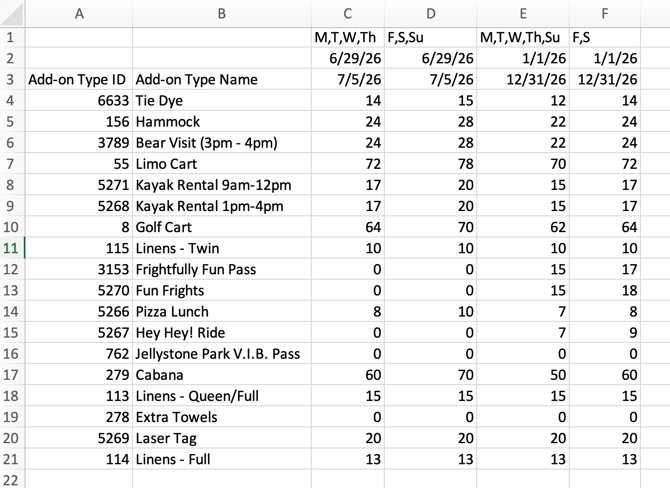
Step 3: Upload Add-On Pricing CSV
- Navigate to Campground Setup from the primary navigation.
- Go to Properties and then Base Pricing.
- Click the Upload Add-On Pricing CSV button.
- Select the updated report file
- Wait for the "Upload Successful" message.

Troubleshooting Tip:
If you do not receive the "Upload Successful" message, your upload may not have been successful. Double-check dates, formatting, and the DOW row to ensure accuracy. Any errors in these aspects could lead to an unsuccessful upload.
Click the resource below to verify your understanding of this report:
Step 4: Double Check Your Work
Verify that your report uploaded and the pricing reflects your pricing strategy by either:
- Testing out a new Reservation
- Downloading the Base Prices for Add-ons report and verify your rates are correct.
Compliment & Enhance Your Base Pricing
Campspot offers automated features that can take your Base Pricing strategy to the next level. Leverage these to increase revenue potential and create business:
- Dynamic Pricing: Define how you want your Admin Site to optimize rates based performance, booking window, and stay dates.
- Package Pricing: Offer special pricing based on specific reservation parameters you define.
By leveraging these advanced features alongside your Base Pricing strategy, you can unlock new opportunities for revenue growth and business expansion.
FAQ
Q: if i already have rates loaded will this delete them?
Only the rates and dates that you enter in the spreadsheet and then upload will be changed. All other rates will remain unchanged and will not be deleted.
Q: What reports are available in Campspot to support my park's Base Pricing strategy?
Commonly Used Reports to plan your rates:
Q: I used to update my pricing using the “Base Prices for Campsites” report. Can I still do that?
No — all uploads must now be done using the Base Price Template for Campsites report. The Base Prices for Campsites (non-template) report is now for viewing and referencing your current rates only. You can use it to check what rates are currently live, but not to make updates.
Q: Why do I only see day-by-day rates in the Base Prices for Campsites report now?
Base pricing is now stored and displayed on a day-by-day basis instead of grouped date ranges. This makes rates easier to audit and supports future automation, but it also means grouped date ranges will no longer appear in the report.
Q: Do I need to include the entire year of pricing in my upload?
No. You only need to include the dates you want to update or add. All other rates remain unchanged in the system.
Q: How do I temporarily close out dates using the base pricing report?
The way to do this differs based on if the Add-on is Day-use or Nightly. For Day-use Add-ons, you use a null rate to make the Add-ons visible in a search but not bookable. For Nightly Add-ons, you use a $0 rate to make the Add-ons visible in a search but not bookable.
Q: What should I do if I get an upload error?
If you don’t receive the “Upload Successful” message, check:
-
That your date formatting follows the correct structure.
-
That your Days of Week (DOW) row is accurate and complete.
-
That there are no blank cells in required columns.
Re-run the report or reference the Base Pricing: How the Base Price Template for Campsites Works article for formatting examples.
Q: How do I make broad rate increases (e.g., 5% increase across all sites)?
You can export your Base Price Template for Add-ons file, input all your dates and date ranges that you currently have pricing set for, use spreadsheet tools (like Excel formulas) to apply increases across date ranges or site types, and then upload the updated file back into Campspot.
Q: Can I still use my grouped rate strategy (e.g., weekday vs. weekend blocks)?
Yes, you can still define and manage those date groups within your Base Price Template for Add-ons file. The difference is that Campspot now stores and displays each day’s rate individually so when you download the Base Prices for Add-ons report to view your pricing you will not see the grouped rates.
Q: How can I confirm my updates uploaded correctly?
After uploading your rates, you should see the upload successful message. To check if the rate updates applied, you can begin to book a test reservation to check pricing for specific days.
If you would like to view the prices in spreadsheet format, run Base Prices for Add-ons (non-template) report to confirm your new rates appear as expected on a day-by-day basis.