.png?width=200&height=150&name=campspotlogo2019%20(1).png)
Summary:
This article delves into the workings of Campspot's Base Price Template for Campsites report, which forms the cornerstone of assigning nightly rates based on Site Types or Add-On Types. It provides a comprehensive understanding of accessing, navigating, and troubleshooting the report, ensuring accurate pricing allocation and effective revenue management for campgrounds.
Uses:
- Access and Navigation: Learn how to access and navigate Campspot's Base Price Template for Campsites report, ensuring efficient pricing management.
- Formatting and Troubleshooting: Understand formatting requirements and common troubleshooting tips to maintain accuracy and functionality of the report.
- Optimizing Pricing Strategies: Discover strategies for optimizing pricing, including prioritizing special date ranges and leveraging automated features like Dynamic Pricing.
New to Base Pricing in Campspot? Check out these resources as well:
Campspot's Base Pricing
Campspot's Base Pricing feature establishes nightly rates for reservations, tailored to Site Types or Add-On Types, ensuring accurate pricing and revenue management, reflecting the value of each campground experience.
To add or update rates in Campspot, you will run a report called "Base Price Template for Campsites", download the CSV template file, add the date ranges and prices you wish to enter or update, and upload it back into the system, completing the process of updating or adding rates.
In the article below, you will learn more about how this report is used and functions.
Please Note:
Campspot does have another report with a similar name: "Base Prices For Campsites." This report is not the same as the report discussed in this article and should not be used to update existing Base Rates. Instead, this report is used to view existing rates for a specified date range.
Click here to learn more about the difference between these two reports.
💡 Quick Reminder:
Use the Base Price Template for Campsites when you need to add new prices, update existing prices, or set rates for future dates (like next year).
If you just want to view your current rates, use the Base Prices for Campsites report instead.
Base Pricing: Site Types VS Add-Ons
The reports used for Base Prices comes in two different variations: one for Site Types and one for Add-ons. If your park offers Day-use or Nightly Add-ons, the information on this page is also applicable to the Base Price Template for Add-Ons as well.
Learn more! Check out the resource below to learn more:
How To: Update Nightly Rates for Daily Add-onsAccessing the Base Price Template for Campsites Report
The Base Price Template for Campsites report can be easily accessed through two main avenues:
- Campground Setup: Go to Properties > Base Pricing > Pricing Templates, and you will be automatically redirected to the Reports page.
- Reporting: Navigate to the Reporting section and search for "Base Price Template for Campsites"
Once generated, the report is available as a CSV file (Excel file). After downloading, you can find the report in your computer's default download folder.
Navigating the Excel Report
Upon opening the Base Price Template for Campsites Excel file, you'll encounter a rich display of data organized in columns and rows, offering a comprehensive overview of your campground's pricing structure. Each column corresponds to specific pricing parameters, providing detailed insights into various aspects of your pricing strategy. Here's what each section entails:
- Column A - Campspot Site Type ID: These unique identifiers are crucial for linking base prices to specific Site Types within your campground, ensuring accurate pricing allocation. (See special note below)
- Column B - Site Type Name: This column lists the names of Site Types created in your system, facilitating clarity and organization in pricing management. (See special note below)
- Column C and onwards: These columns are where you display rates for defined periods, enabling flexibility in pricing based on date ranges and days of the week.
- Rows 1 - 3: These rows play a vital role in structuring the report.
- Row 1 - Shorthand Days of Week: This row specifies the days of the week to which the pricing applies, using abbreviated forms such as Su (Sunday), M (Monday), and so on.
- Row 2 - Starting Date: This row denotes the start date of the pricing period.
- Row 3 - Ending Date: This row indicates the end date of the pricing period.
⚠️ Please note:
The information contained in Columns A and B (Site Type ID and Site Type Name), along with the structure in Rows 1–3, is critical. These values tell Campspot which Site Types or Add-Ons your prices apply to.
When making updates, you only need to keep the Site Types you plan to adjust pricing for. You can safely delete any rows for Site Types you’re not changing, and their prices will remain untouched in the system.
For example, if you’re only updating rates for lodging Site Types over upcoming holiday weekends, you can remove all non-lodging Site Types from your downloaded template before reuploading.
As a rule of thumb, do not alter Columns A or B for any rows you keep—these IDs and names must remain exactly as they appear in the report to ensure proper association with your Site Types.
For instructions on adding or removing Site Types entirely, see: Base Pricing: Adding a New Site Type.
Below you will find an example of a filled out the Base Price Template for Campsites Excel report. In this example, a parks is inputting prices for two full years at once. The colors are for reference only based on the information previously discussed. Your report will not have these colors.
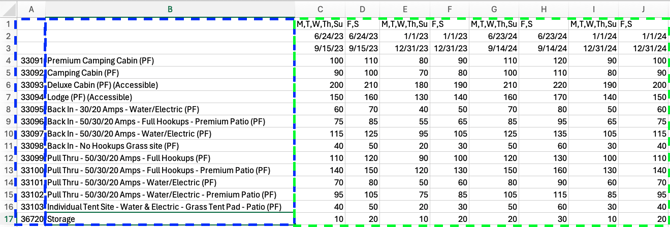
Column C forward: Base Pricing Date Ranges
Column C serves as the starting point for pricing within the report. The headers in rows 1 - 3 define the periods during which the rates below apply, encompassing both the start and end dates. Here's a breakdown of how the information is structured and utilized by your Admin Site:
Formatting: Short-Hand Days of the Week
Row 1 specifies the days of the week to which the pricing applies during the defined date range. Days are abbreviated and separated by commas as follows:
| Sunday | Su | Thursday | Th |
| Monday | M | Friday | F |
| Tuesday | T | Saturday | S |
| Wednesday | W |
Formatting: Date Ranges
Row 2 denotes the start date of the pricing range, while row 3 indicates the end date. Dates should always be formatted as mm/dd/yyyy for clarity and consistency.
Troubleshooting Tip:
The most common issue users experience when updating and inputting pricing via the Base Price Template report is not following the abbreviated day of the week and the formatting of the Date Ranges. As you complete your updates, double check you are following the requirements outlined above.
Left to Right Reading
Your Admin Site interprets the report from left to right, prioritizing the date ranges as they are read across the columns. In looking at the example provided above, you will note the following:
- This park's report starts with a date range from 06/24/23 - 09/15/23, including a column for Weekday and Weekend Rates (Columns C & D).
- The next set of dates includes the entire year's date range: 01/01/23 - 12/31/23 (Columns E & F).
- This pattern repeats for subsequent years (Columns G - J).
- This rate strategy has Summer rates as well as Weekend rates.
As the Admin Site processes this information, it pulls rates from the appropriate column based on the reservation dates. For example:
For a reservation in the summer of 2024, with a Check-In date of 06/20/24 and Check-Out date of 06/25/24, rates will be retrieved from the columns inclusive of each date:
-
- 06/20/24 (Thursday) - Column I for Weekday rates.
- 06/21/24 - 06/22/24 (Friday & Saturday) - Column J for Weekend rates.
- 06/23/24 - 06/24-24 (Sunday & Monday) - Column G for Weekday rates during the summer season.
Please Note:
If your pricing strategy involves defining small date ranges, such as for park seasonality or holidays, it's essential to ensure that these special dates are input into columns before larger date ranges of the same year. This ensures that the system prioritizes the rates according to your specific pricing strategy.
For example, if your park offers Summer rates based on the day of the week, ensure that the corresponding date ranges for Summer rates are placed before the columns defining the rates for the entire year. This allows the system to prioritize these rates accordingly.
After inputting rates for the current year, users can proceed to input rates for subsequent years in the columns to the right.
For more detailed examples and instructions, please refer to:
Compliment & Enhance Your Base Pricing
Campspot offers automated features that can take your Base Pricing strategy to the next level. Leverage these to increase revenue potential and create business:
- Dynamic Pricing: Define how you want your Admin Site to optimize rates based performance, booking window, and stay dates.
- Package Pricing: Offer special pricing based on specific reservation parameters you define.
By leveraging these advanced features alongside your Base Pricing strategy, you can unlock new opportunities for revenue growth and business expansion.
Most Common FAQ:
Q: What is the purpose of Campspot's Base PRice Template for Campsites Report?
Campspot's Base Pricing feature serves as the foundation for assigning nightly rates to reservations based on Site Types or Add-on Types. It ensures accurate pricing allocation and effective revenue management for campgrounds. The report is how you will upload your pricing into Campspot.
Q: What are the differences between Base Price Template for Campsites and Add-on Types?
The Base Prices for Campsites report comes in two variations: one for Site Types and one for Add-Ons. Site Types refer to the basic accommodations, while Add-Ons are additional services or amenities.
Q: Are there any best practices for navigating the Excel report generated by Campspot's Base Prices for Campsites feature?
Yes, it's essential to follow best practices such as storing the downloaded report in a dedicated location on your computer and ensuring consistency in naming conventions and structure.
Q: How do I troubleshoot common issues when updating Base Prices reports?
The most common issue users experience is not following the abbreviated day of the week and the formatting of the Date Ranges. Double-check that you are following the requirements outlined in the article.
Q: How do I add a new Site Type to current Base Prices?
Click here to learn more about this process: