.png?width=200&height=150&name=campspotlogo2019%20(1).png)
Summary
Transitioning from nightly add-ons to day-use add-ons helps improve booking accuracy and better reflect how guests use amenities such as pool passes, kayak rentals, or wristbands. This process ensures your setup is optimized while maintaining reporting and reservation integrity.
This article provides step-by-step instructions to pause and then deactivate existing Nightly Add-ons, create matching Day-use Add-ons, edit affected reservations, and clean up your setup once the transition is complete.
Step-by-Step Instructions
Step 1: Implement a Cannot be Booked Online Rule
To begin the transition, prevent new reservations from being made for your existing nightly add-ons. This is only a temporary rule and will be removed later.
To do this:
- Navigate to Rules.
- Click on the Functions tab.
- Select the Cannot be Booked Online rule.
- Complete the form.
- Name: apply a rule name that is easily recognizable like: Site Type Change Block.
- Active Dates: Select the Wide Range date group.
- Nightly Add-on Selection: Select each nightly Add-on that will be replaced by a Day-use version.
-
Deactivate any nightly add-ons that do not have future reservations.
Note: Only deactivate add-ons that have no future reservations attached.
Learn more! Find out more about the Cannot be reserved online rule [HERE].
Step 2: Handle Active Nightly Add-Ons with Reservations
If a nightly add-on has active or future reservations and cannot be deactivated, follow the steps below to prepare for migration.
To do this:
-
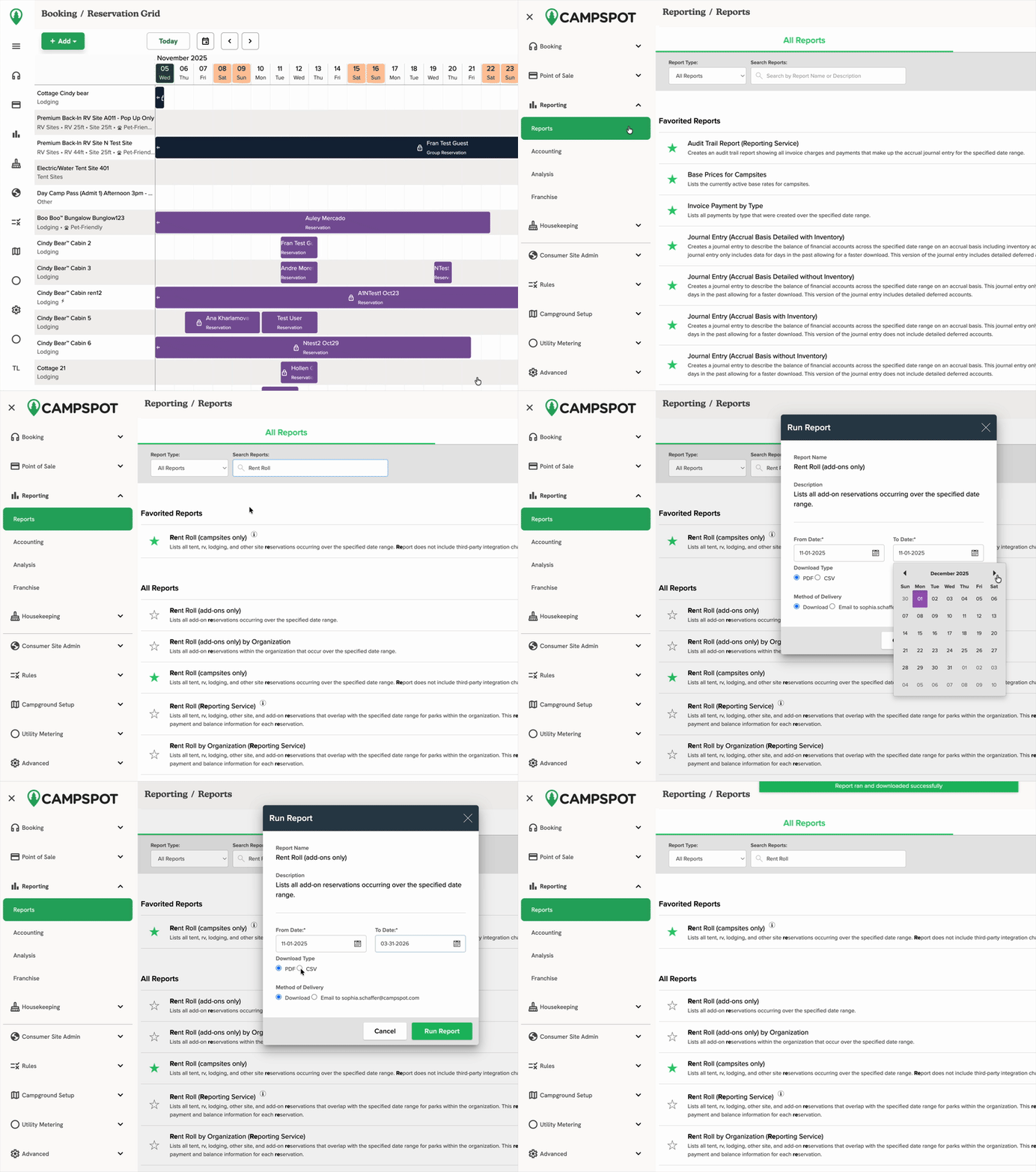
Run the csv. version of the Rent Roll (Add-ons only) report to list all reservations tied to that add-on. Run the report from today's date through as long as you have the pricing set up for that Add-on.
The soundless clip below shows this report being run from November 1st 2025, through March 31st, 2026.
-
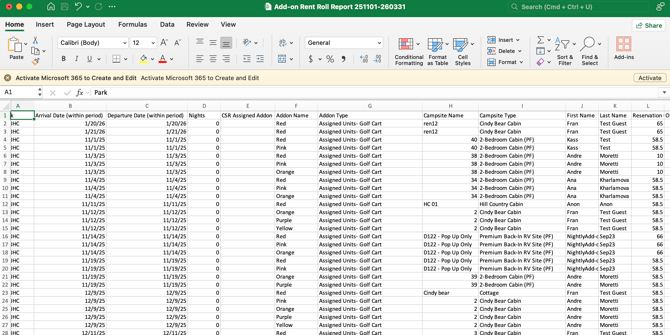
Identify which reservations will need to be updated during the migration process.
The image below shows an example of the Rent Roll (Add-ons only) report with the necessary information
Step 3: Create Matching Day-Use Add-Ons
Next, recreate your nightly add-ons as day-use versions.
To do this:
-
Navigate to Add-On Setup in Campground Setup.
-
Recreate each Nightly Add-on as a Day-Use Add-On, keeping most details the same and making changes in the description and invoice message where necessary.
-
Grouping: Pay special attention to the Grouping category and select the best option for your newly created Add-on.
-
-
Add the "Cannot Be Reserved Online" rule to each new Day-use Add-on temporarily.
- Create and upload pricing for the new Day-use Add-ons.
- Update all rules that apply to the new Day-use Add-on.
Action Item: Get step-by-step instructions for creating new Day-use Add-ons [HERE] and step-by-step instructions on creating pricing [HERE].
Step 4: Update Add-ons on Existing Reservations
Now that your new day-use add-ons are created, it’s time to make edits to any existing reservations with the old Nightly Add-ons on them.
To do this:
-
Open each reservation listed in your report.
-
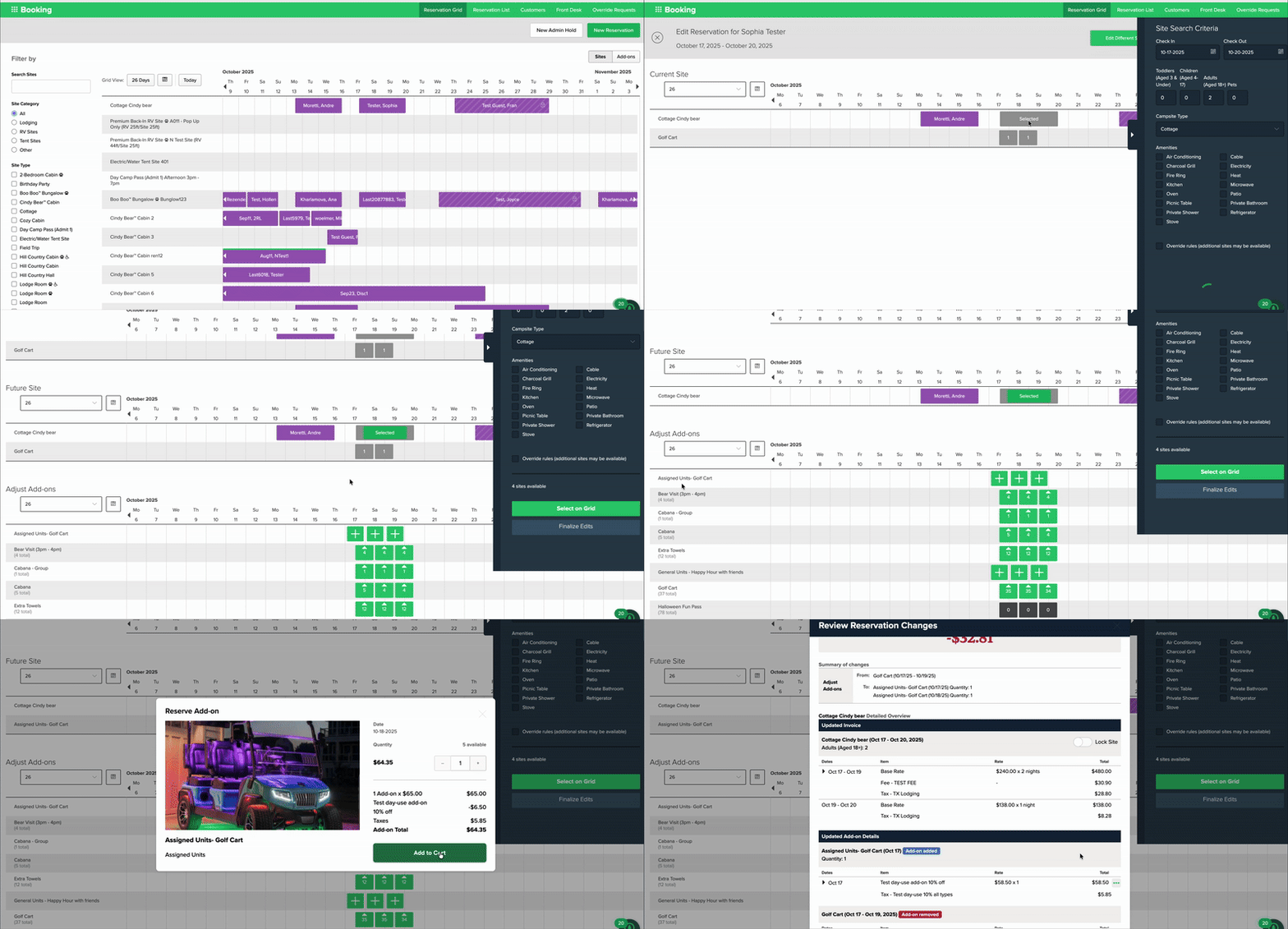
Edit the reservation and remove the Nightly Add-on in the edit workflow.
-
Add the matching Day-use Add-on to the same reservation. Learn how [HERE].
-
Save your changes.
The clip below shows the process of removing the Nightly Add-on and adding the equivalent Day-use Add-on.
⚠️ Pricing Caution
Carefully review pricing when removing old Add-ons from the reservation and replacing them with the new ones. Provided the pricing (including all pricing related rules) for the new Day-use Add-on matches that of the old Nightly Add-on, the total reservation price will remain unchanged.
If the rates from the new Add-on are different than the old Add-on, there will be a change to the Reservation total costs. You will want to either inform your guests of the new rates or manually adjust the rates found on the Reservation Invoice.
To learn more about editing prices directly on the reservation click [HERE].
Step 5: Deactivate Nightly Add-Ons
Once all reservations have been updated:
- Navigate back to Unit Setup.
- Select Nightly in the Add-on category.
- Click on the Nightly Add-on you want to deactivate.
- Uncheck the Active box at the top of the Edit Nightly Type screen.
- Click Save Changes.
Step 6: Open the New Day-Use Add-Ons
Finally, make your day-use add-ons available for online reservations.
To do this:
-
Navigate back to your Rules page.
-
Remove the "Cannot Be Reserved Online" rule from all new day-use add-ons.
Your Day-use Add-ons are now active and ready for guest bookings.