.png?width=200&height=150&name=campspotlogo2019%20(1).png)
Summary:
When you encounter pricing related issues such as incorrect rates, or unavailable site types due to missing rates, you can isolate and review the affected period using the Base Prices for Campsites report. Learn the steps in this process below.
Learn more! New to Base Pricing? Check out the resources below to dive in further:
Troubleshooting Incorrect Rates
If you’ve noticed or received reports that nightly rates appear incorrect in reservation searches, it’s often tied to a specific date range rather than a system-wide issue. Here’s how to investigate and confirm what’s happening.
Step 1: Identify the Date Range in Question
Determine the exact dates where the rate appears to be incorrect. This will help you narrow your search and avoid unnecessary data review.
Step 2: Download the Base Prices for Campsites Report
To check the actual rate values, download the Base Prices for Campsites report for that specific date range. Navigate to Reporting and search for the 'Base Prices for Campsites' report. This lets you quickly view the nightly rates being stored in the system without having to sort through your full calendar.
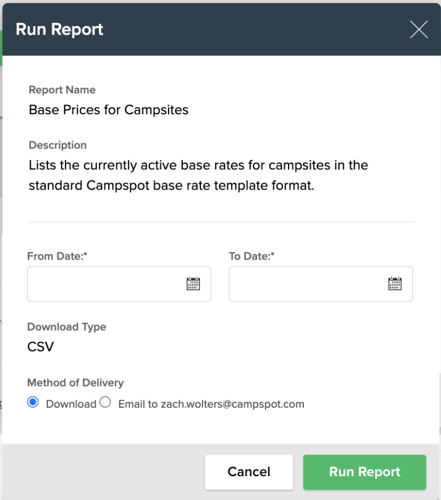
The image below shows the Run Report modal for the Base Prices for Campsites report.
Step 3: Review the Report
-
The Base Prices for Campsites report displays rates in an individual day format, rather than grouped date ranges.
-
For that reason, it’s best to only download the specific range you’re troubleshooting.
-
Dates with a null rate (no price set) will not appear in the report.
By isolating the date range in question, you can more easily spot missing or incorrect rate entries and take corrective action.
The image below shows an example of what the report looks like for a 10 day date range.

Step 4: Update Rates for the Affected Dates
- Using the report as a reference, update the nightly rates for the date range in question. Follow the support instructions [HERE] for uploading and adjusting rates to ensure all dates are properly priced.
- Once the missing base prices are added, the pricing for those dates should display correctly in the reservation search.
Troubleshooting 'No Sites Available' Message
Sometimes, when running a reservation search for a guest, you may see a “No Sites Available” message.

If you’ve already gone through the standard troubleshooting steps outlined in our guide — Troubleshooting the “No Sites Available” Message — and determine that the issue is due to missing base prices, follow these steps:
Step 1: Identify the Date Range in Question
Determine the specific dates where the “No Sites Available” message appears. This will help you narrow your search and avoid unnecessary data review.
Step 2: Download Base Prices for Campsites Report
- To check for missing nightly pricing, download the Base Prices for Campsites report for that specific date range. To do that, navigate to Reporting and search for the 'Base Prices for Campsites' report.
- This report lets you quickly view the nightly rates being stored in the system without having to sort through your full calendar.
- If you do not see any pricing on the report for the dates in question, you can conclude that you need to add pricing.
Step 3: Review the Report
-
The Base Prices for Campsites report displays rates in an individual day format, rather than grouped date ranges.
-
For that reason, it’s best to only download the specific range you’re troubleshooting.
-
Dates with a null rate (no price set) will not appear in the report.
By isolating the date range in question, you can more easily spot missing or incorrect rate entries and take corrective action.
Step 4: Update Rates for the Affected Dates
- Using the report as a reference, update the nightly rates for the date range in question. Follow the support instructions [HERE]. for uploading and adjusting rates to ensure all dates are properly priced.
- Once the missing base prices are added, the availability for those dates should display correctly in the reservation search.