.png?width=200&height=150&name=campspotlogo2019%20(1).png)
Summary
Boost your campground’s ancillary revenue and guest experience with Campspot’s Day use Add-Ons. This feature is designed for parks that rent or reserve amenities such as kayaks, tubes, paddle boards, cabanas, golf carts, pavilions, activity passes, and more. This guide walks you through the step-by-step process of creating and configuring Day-use Add-ons in Campspot.
New To Day-use Add-ons? Check Out these articles to learn more:
Step-by-Step Instructions:
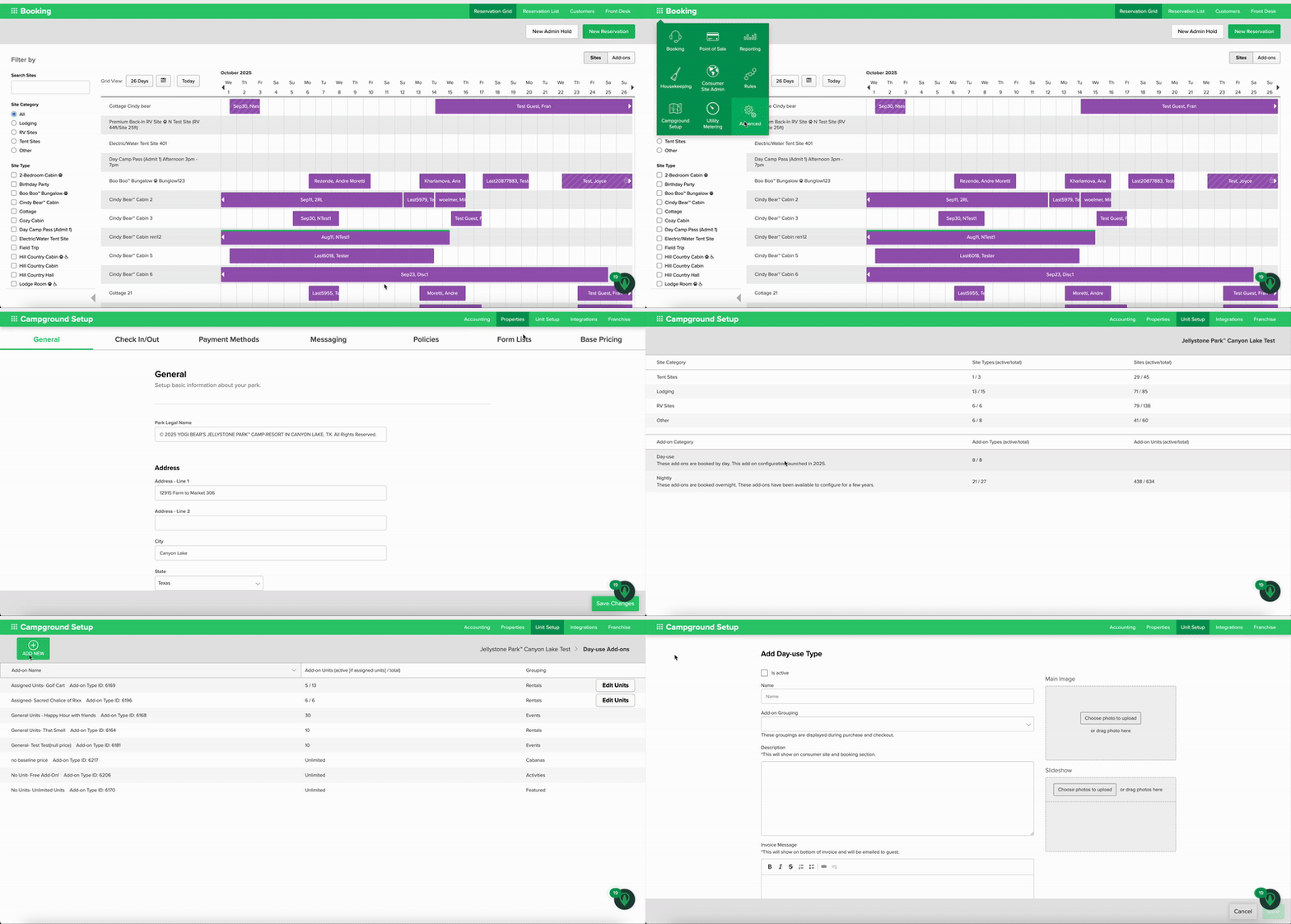
Step 1: Navigate to Add-On Setup
-
Navigate to Campground Setup
-
Select Unit Setup → Add-on Types.
-
Choose Day-use Add-on.
-
Click New Add-on Type.
The clip below shows the steps listed above.
Step 2: Configure Basic Details
-
Toggle Active: Ensure this is switched ON so guests can book it.
-
Name: Use a clear, guest-friendly name (e.g., “1-Seater Kayak 9am–12pm”).
-
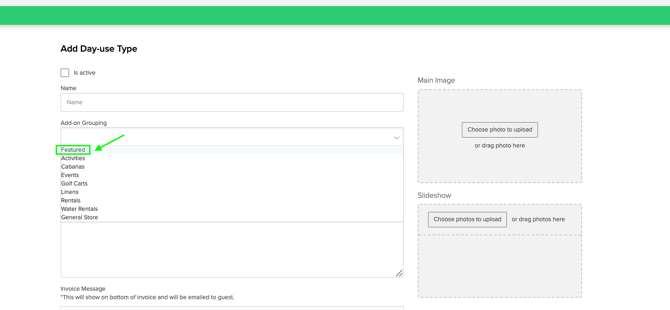
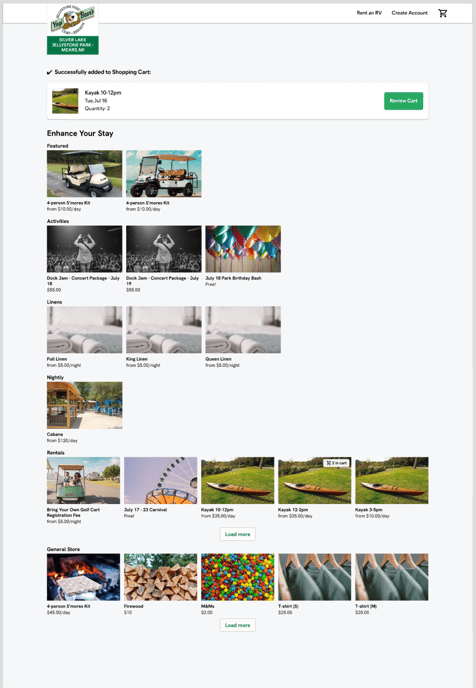
Add-on Grouping: Group similar add-ons together for easier checkout browsing.
**See more about Add-on Grouping step 2a below
-
Description: Briefly describe what’s included (e.g., “Single kayak rental for morning session. Life jackets provided.”).
-
Invoice Message: Add important terms or policies (e.g., cancellations, exchanges).
💡 Pro Tip: Keep names short and descriptive — guests will see them during checkout and on their invoices.
Step 2a: Add-on Grouping
💡 Pro Tip: Grouping for Nightly Add-ons can also be changed from Nightly to anything else. General Store Add-Ons are the only ones that cannot be edited.
Step 3: Add Images
-
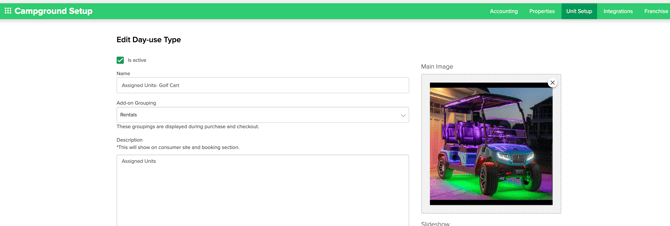
Upload a Main Image that clearly shows the rental or experience.
-
Add optional slideshow images to highlight the guest experience (e.g., photos of the pool area, kayaks, or equipment).
The image below shows an example of a golf cart Day-use Add-on image
Step 4: Configure Units
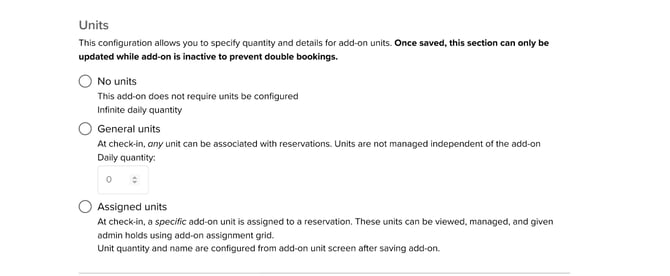
Choose how inventory will be managed:
-
No Units: Unlimited — best for fees or add-ons that can’t sell out (e.g., hiking trail passes).
-
General Units: Limited inventory without specific names.
-
Assigned Units: Each rental requires a unique ID or label.
Note: If you select ASSIGNED units, you will also need to manually add each unit. (e.g., Kayak #1, Kayak #2 etc.) This is done by clicking the Add-On Units link in the modal.
The image below shows the selection page for configuring units
💡 Pro Tip: Use Assigned Units if you have a fixed number of items to prevent double-booking.
Step 5: Set Availability
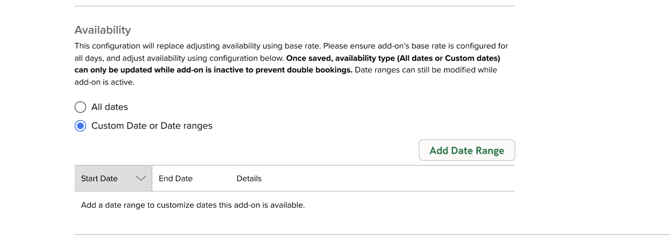
Setting availability is an important step for Day-use Add-ons as it is a primary functionality that differentiates these Add-ons from others.-
Choose All Dates (always available) or Custom Dates/Date Ranges.
-
For custom dates:
-
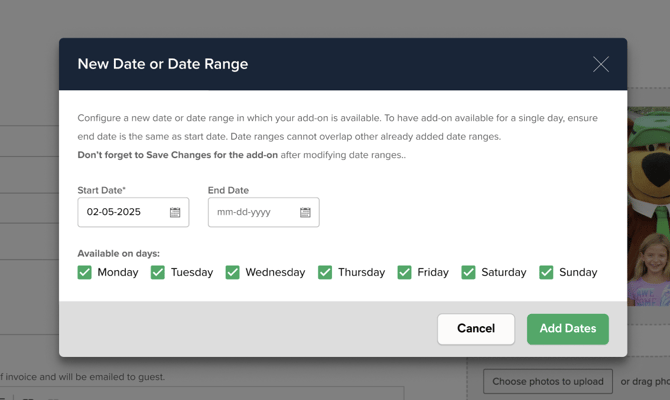
Select start/end dates in the date picker (cannot select past dates).
-
Choose which days of the week the add-on is available.
-
The image below shows the availability selection page
The image below shows the custom date range picker
💡 Pro Tip: Create multiple date ranges for seasonal rentals — e.g., Memorial Day–Labor Day.
Step 6: Assign Financial Accounts
Ensure revenue is tracked correctly by assigning accounts:
-
Financial Account (required)
-
Main Discount Account (optional)
-
Deferred Financial Account (optional)
The image below shows an example of the mapping of a Day-use Add-on. 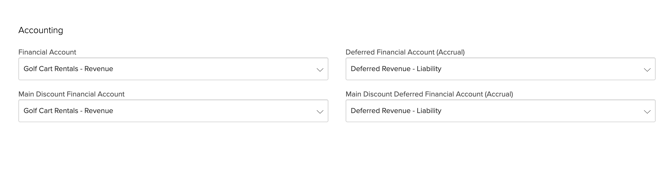
Step 7: Save Your Changes
Click Save Changes to activate the Add-on. It will now be available for booking.
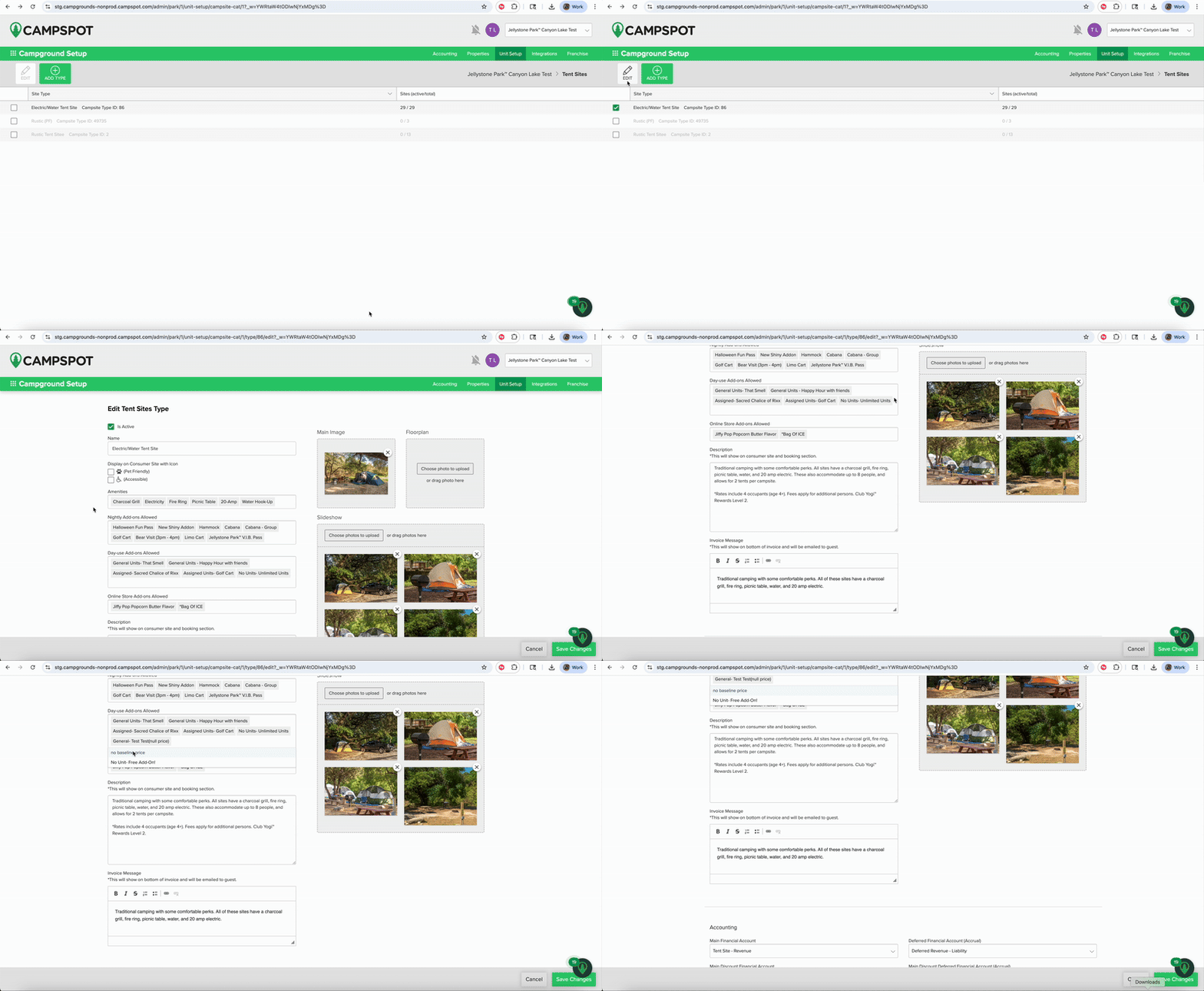
Step 8: Assign the Add-on to a Unit Type
-
Go to Campground Setup → Unit Setup → Site Categories.
-
Select the Site Category you want to edit.
-
Add the Day-use Add-on to the Site Type.
-
Click Save.
The clip below shows the steps listed above.
Step 9: Upload Base Pricing for Add-ons
-
Go to Campground Setup → Base Pricing.
-
Download the Add-ons Pricing Report.
-
Update the report with prices for Day-use Add-ons.
-
Re-upload the report.
Tip about Base Pricing for Day-use Add-ons:
-
Null pricing: The add-on is visible in search/results but cannot be booked.
-
$0 pricing: The add-on can be booked at $0 for the reservation.
Get a step-by-step guide on the pricing process [HERE].
Step 10: Set Up Rules
Any rules that you would like to apply to the new Day-use Add-on should be setup at this point. Available rules include:
Step 11: Test Your Setup
Before you go live, make sure everything works the way you expect by running a quick test:
-
Make a test reservation.
-
Add the Day-use Add-on.
-
Verify quantity limits, pricing, and invoice messaging.
-
Adjust settings as needed.
Reporting for Day-use Add-ons
Day-use Add-ons are included in several standard Campspot reports:
-
Reservation Item Originations by Date & Source
-
Rent Roll Add-Ons Only
-
Rent Roll (Reporting Service)
-
Add-on Grid
-
Active Package
-
Add-on Assigned at Check-In
-
Daily Revenue and Occupancy by Add-on Type
-
Sales Report (new version coming soon)
-
Front Desk Reports: Arrivals, Who’s in the Park, Departures
Most Common FAQs
Q: What is the difference between day-use add-ons and nightly add-ons?
Nightly Add-ons are booked for overnight use or multiple days at a time without having to return them whereas Day-use Add-ons are for daily rentals.
Q: What types of rentals or amenities work best with Day Use Add-Ons?
Parks commonly use this feature for rentals like kayaks, paddle boards, cabanas, golf carts, and day passes.
Q: Can I limit availability to specific dates or days?
Yes, you can configure custom date ranges and select specific days of the week.
Q: What’s the difference between General Units and Assigned Units?
General Units track quantity only, while Assigned Units let you manage specific, uniquely named items (e.g., Golf Cart #1).
Q: How do I confirm my setup is correct?
Always make a test reservation to verify pricing, availability, and invoice messaging.
Q: What’s the difference between null pricing and $0 pricing for Day Use Add-Ons?
Null pricing will cause the add-on to still be visible in search/results but it cannot be booked. $0 pricing will allow the add-on to be booked at $0 for the reservation.