.png?width=200&height=150&name=campspotlogo2019%20(1).png)
Summary:
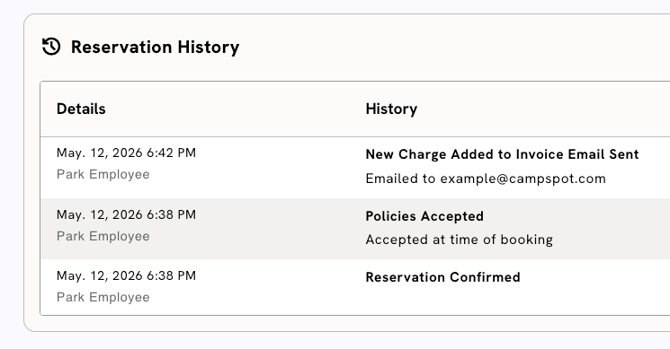
The “Email” tool is a simple way to resend important stay details or share new updates. Instead of waiting for the system to send an automated message, staff can use the "Email" button on a Reservation Summary to send a guest exactly what they need. Every email sent this way is tracked in the reservation's history, so your team always knows what was sent, the date and time it was sent, and by which staff member at the park.
Uses:
- Resend Lost Info: Quickly send a new copy of a reservation confirmation or terms and conditions.
- Share Payment Proof: Send a receipt after a guest makes a payment or receives a refund.
- Speed Up Check-In: Send the online check-in link or a gate access code directly to a guest’s inbox.
- Update on Charges: Notify a guest right away if a new charge or add-on has been added to their bill.
Instructions:
Step 1: Open the Reservation
- Navigate to the Booking Grid and select a reservation.
- You can also use the Reservation List or Front Desk to open reservations.
Step 2: Click the “Email” Button
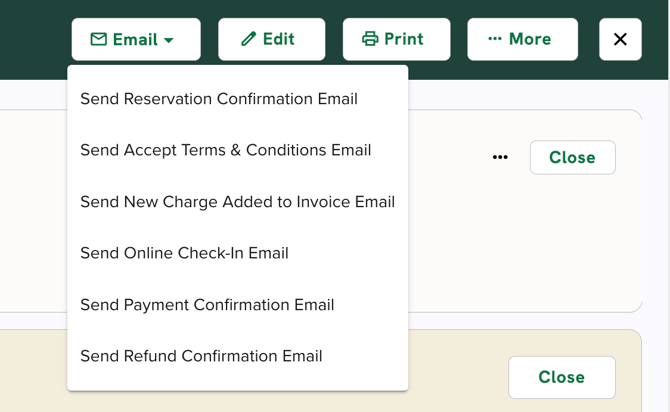
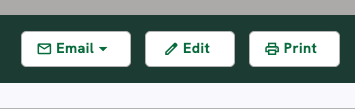
- At the top of the Reservation Summary, click the Email button.
Step 3: Select Your Email
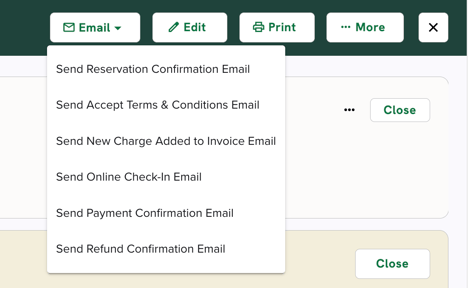
A list of available emails will appear. Depending on the reservation, you may see:- Reservation Confirmation: Resends the Confirmation Email with a unique "Reservation Detail Link" that includes the standard booking summary with stay details, invoice details, payment history, and Terms and Conditions.
- Accept Terms and Conditions: Sends a direct link for the guest to review and sign your park's Terms and Conditions.
- Pre-Arrival: Sends a summary of important arrival details to help guests prepare for their stay.
- New Charge Added to Invoice: Notifies the guest that a new fee or add-on has been added to their balance.
- Email options available on CAMPSPOT'S NEW VERSION below:
- Online Check-In: Sends the link for the guest to check in from their own device.
- Payment Due: Notifies the guest of an outstanding balance on their reservation and provides a direct link to make an online payment quickly and securely.
- Payment Confirmation: Sends a receipt for a successful payment.
- Refund Confirmation: Sends a receipt confirming a refund has been issued.
- Pre-Departure: Sends check-out times and departure instructions, and can be used to invite guests to extend their stay at your park.
- Post-Departure: A follow-up message sent after check-out, typically thanking the guest for their visit and providing a link to a feedback survey or an offer to book again.
- Lock Code: Sends the digital access code for the guest's specific site (available for parks using digital lock systems integrated with Campspot, like RemoteLock).
Learn More! Check out the links below to learn more about customizing emails sent out from your park
Step 4: Send
- Click the email type you want to send. It will immediately send to the email address on the guest's profile.
Step 5: Check History
- Click the Reservation History section located at the bottom of the Reservation Summary Tab to see a record of the email you just sent.
Most Common FAQ:
Q: Why are some email options hidden in the list?
A: The system uses "smart logic" to ensure only relevant emails are sent. For example, a "Refund Confirmation" will only be an option if a refund has actually been processed, and "Online Check-In" is only available for reservations that have reached the check-in window.
Q: Can I view or edit the email before sending?
A: Most emails source their content from the fields in Campground Setup>Messaging, and many of these emails can be customized. Click here to learn more about customizing your emails in Campspot to fit your park's brand and communication style.
Q: Will I know if the email was sent?
A: You can see that the email was successfully "sent" in the Reservation History section. This includes the date, time, and which staff member sent the email.
Q: What if the guest wants the email sent to a different address?
A: Manual emails are sent to the primary email address on the guest's profile. To send it elsewhere, update the email address on the guest profile before clicking the send button.