.png?width=200&height=150&name=campspotlogo2019%20(1).png)
Summary:
Campspot’s updated navigation (launched October 2025) provides a cleaner, more accessible, and mobile-friendly interface that makes it easier to move through the platform. This guide explains what’s changed and how to switch between versions.
Important: Users can toggle between the legacy and new version for a limited time. While the new navigation is the recommended experience, you can continue using the old version if needed. This phased approach encourages users to try the new interface while allowing time to adjust before the legacy version is fully retired.
Note: The updated Booking Grid (view-only) launched with the new navigation. For details on what’s changed, check out the support article [HERE].
Content
Below is a list of the content that you'll find throughout this article. For quick access to a specific topic, click the topic below and you'll jump forward to that section.
- Why the change
- Key navigation changes
- Key benefits
- A look at the changes
- Icon clicks vs. menu expansion
- How to switch between the new navigation and the legacy navigation
- FAQ
Why the Change:
To continue improving Campspot’s performance and accessibility, the navigation system has been redesigned for better usability and a more modern look and feel. This update brings accessibility compliance, better mobile usability, and sets the stage for faster rollout of future features that benefit your park.
Key changes
The core organization of your Campspot admin site remains familiar, but the new navigation bar features updated icons and a structure designed for better clarity and mobile use.
-
Refreshed Organization: The navigation bar on the left side of the screen has a new, modern look that better organizes sections of the Campspot admin site for faster browsing.
-
Collapsible Design: The main categories (Booking, Reporting, Rules, etc.) now collapse into simple icons to save screen space, especially on mobile and tablet devices. Click the category name or the arrow to expand the list of sub-pages.
-
Key Icon Changes: The icons for each primary section have been updated for a modern look. Familiarize yourself with the new graphics for these frequently used areas to improve quick navigation.
-
User Menu Consolidation: Your settings are now accessed through a unified menu at the bottom of the navigation bar. Click your User Name to find:
-
Account and Settings
-
Support
-
Sign Out
-
Key Benefits:
- Modern, user-friendly design
- Mobile and tablet compatibility
- More intuitive access to pages within Campspot
- Faster and more secure foundation for future updates on the platform
A Look At The Changes
The clip below shows use of the new navigation menu
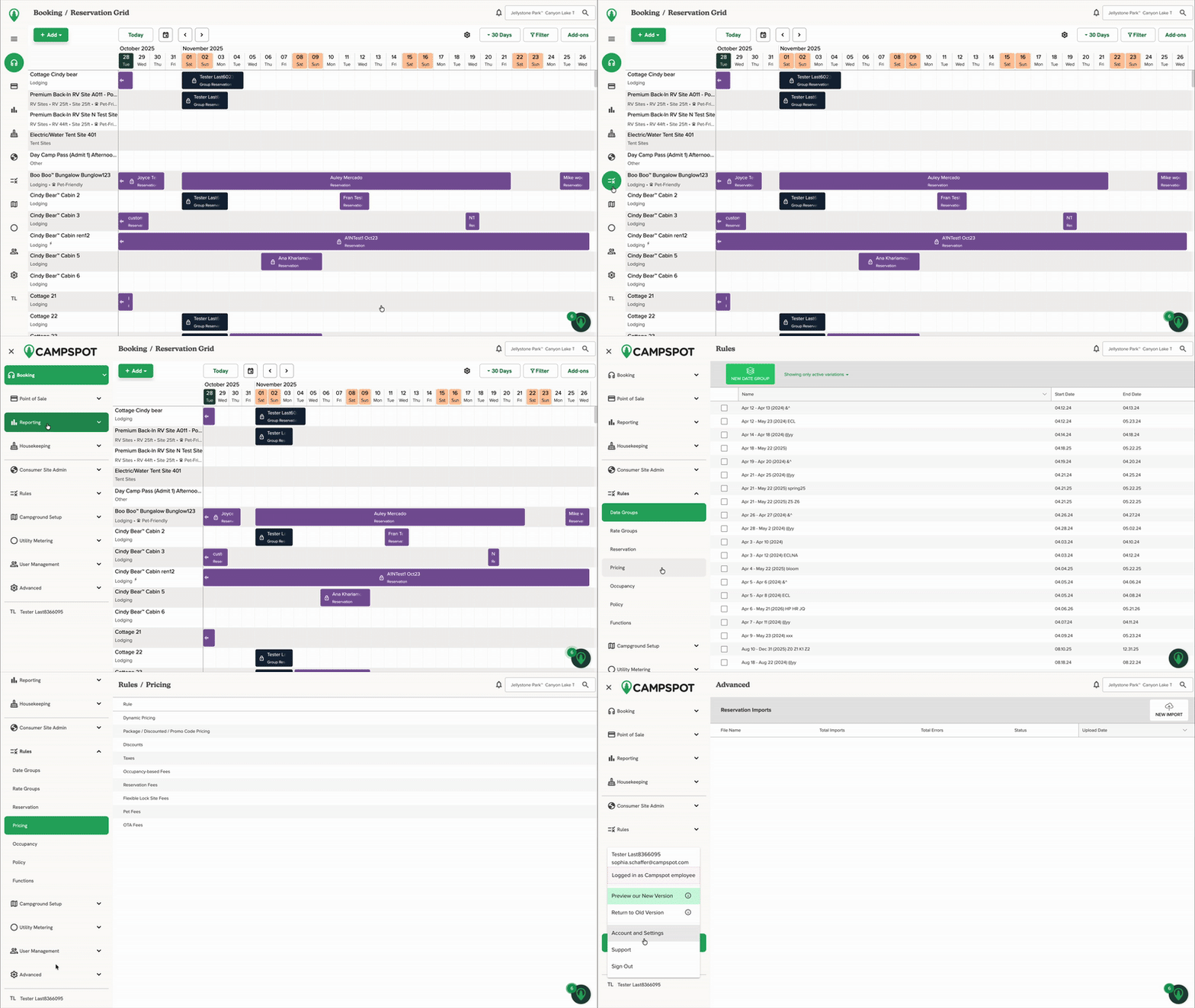
The image below shows the expanded navigation menu
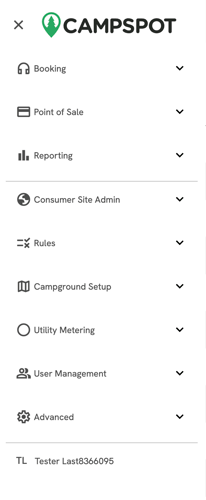
Navigating the Collapsed Menu: Icon Clicks vs. Menu Expansion
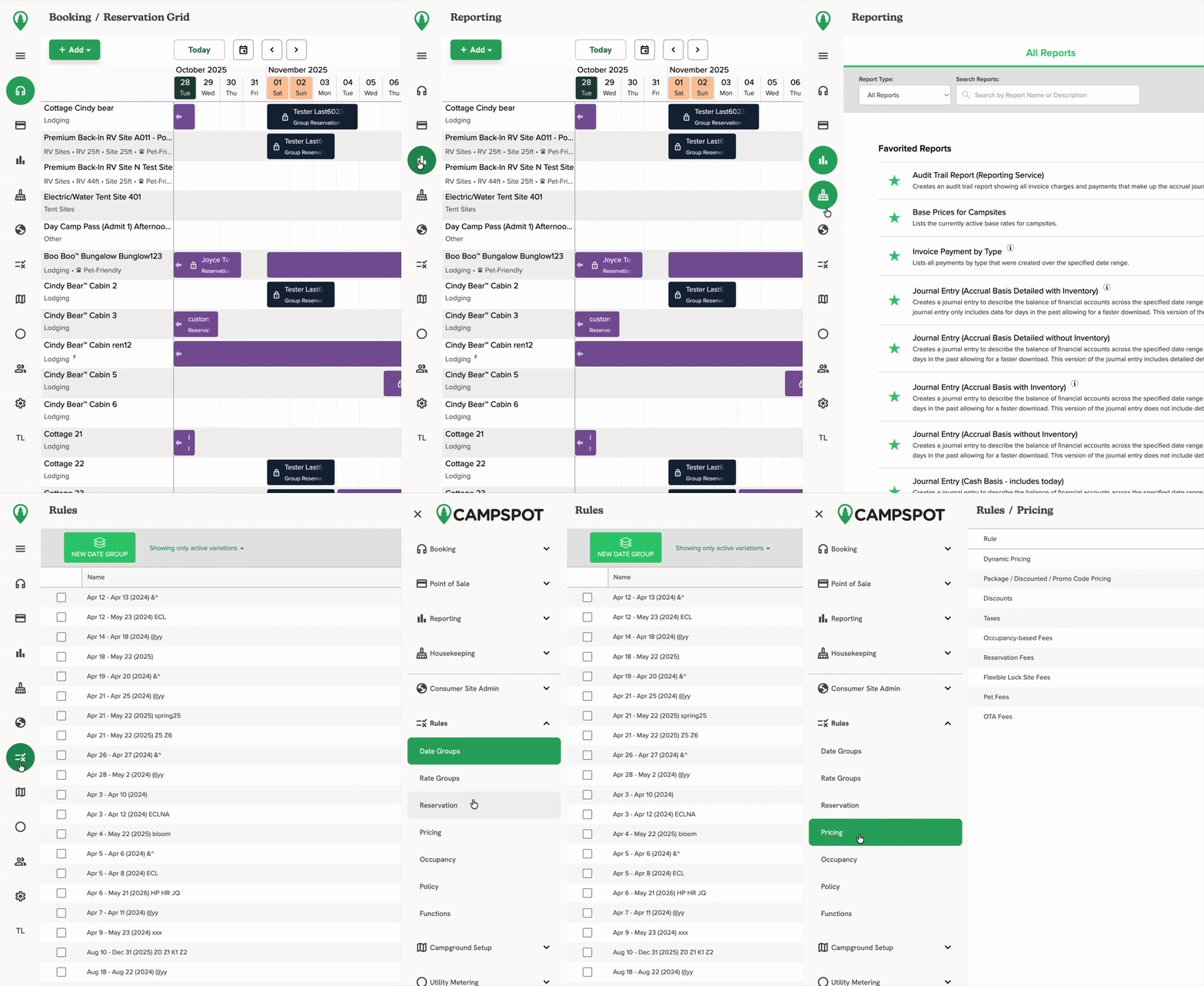
The new navigation bar defaults to a collapsed view (icons only) to maximize screen space. This changes how you interact with the menu:
-
Quick Clicks (Collapsed View):
-
Clicking an icon in the collapsed bar (e.g., the Reports) will immediately take you to the main page for that section.
-
In the collapsed view, you cannot see or select the sub-pages before clicking.
-
-
Accessing Sub-Pages (Expanded View):
-
To view the full menu and access sub-pages, you must first click the Menu Icon at the very top-left of the screen.
-
Clicking the icon expands the navigation bar, showing the category names (e.g., Reporting, Rules) and allows you to click the arrow next to the category to view and select the sub-pages.
-
The clip below shows the difference between the collapsed menu and the expanded menu
How to Switch between the new navigation and the legacy navigation
For a limited time after release, users can toggle between the the legacy view and the new view. This is done from the bottom of the new navigation menu in the new version, and from the top right corner of the screen in the old version.
Note: Switching versions will change both the Navigation and the View-Only Booking Grid. These updates cannot be toggled separately.
To switch from the legacy navigation to the new version:
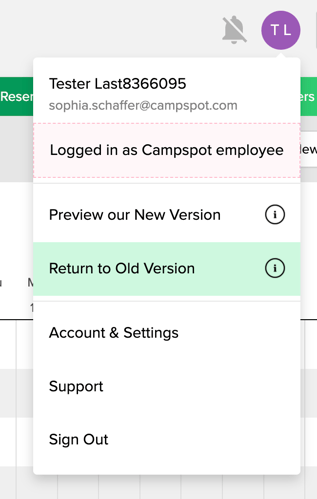
- Click the purple circle with your initials at the top right corner of the screen.
-
In the menu that appears, click the "Preview our New Version" button.
To switch from the new navigation to the legacy version:
-
From the new navigation, at the bottom left of the screen, click your initials (if the menu is not expanded) or your username (if the menu is expanded) at the bottom of the left-hand navigation bar.
-
In the menu that appears, click Return to Old Version.
The clip below shows this process.
.gif?width=670&height=378&name=ScreenRecording2025-10-28at15.11.38-ezgif.com-speed%20(1).gif)
Note: Campspot will fully transition to the new navigation near the start of 2026. A notice will be provided before the legacy version is removed.
FAQ:
Q: does the new navigation apply to all pages within campspot?
All pages have the new navigation. The Booking Grid changes that launched at the same time only apply to view only version of the Booking Grid. To learn more about those changes visit the support article [HERE].
Q: Did the internal organization of pages, like the categories within the Rules section, change?
No. While the left navigation bar itself has a refreshed look, the internal structure and organization of your sub-pages remain the same. For example, when you click on Rules, you will still find all the same rule categories like Rate Groups, Pricing, Reservation, and Policy, just with an updated visual appearance and better mobile compatibility. All your existing settings and data are secure and accessible exactly where they were before.
Q: Can I switch back to the old version if I prefer it?
Yes, for a limited time, you can toggle between the new and old navigation. After the full rollout, the legacy version will be sunset.
Q: Does this change how I perform my daily tasks?
The workflows remain the same, but you’ll notice an improved look and feel with faster navigation and better visibility.