
Summary:
Introducing Campspot AI Assistant, one of the most powerful tools available to park operators on Campspot today. Campspot AI Assistant is built directly into Campspot's Admin Site, and allows you to effortlessly complete common & advanced tasks, and get answers quickly. Check in a guest, move sites, set base rates, create a new site type, set rules: all by typing a single instruction into the chat window. Instead of navigating menus, clicking through setup screens, and filling out form after form, you simply tell the assistant what you need — and it handles it.
Campspot’s AI Assistant also gives instant answers to any Campspot question, and provides steps and the relevant Knowledge Base guides. Tasks that once required multiple steps across multiple pages now take one sentence. For parks that manage dozens of site types, run lean teams during peak season, or need to make pricing decisions quickly, Campspot AI Assistant changes what's possible in the day-to-day operation of your park.
Access the assistant from the purple Campspot icon in the top right corner of your Admin Site. (Currently available for select parks on the Campspot Growth Package)
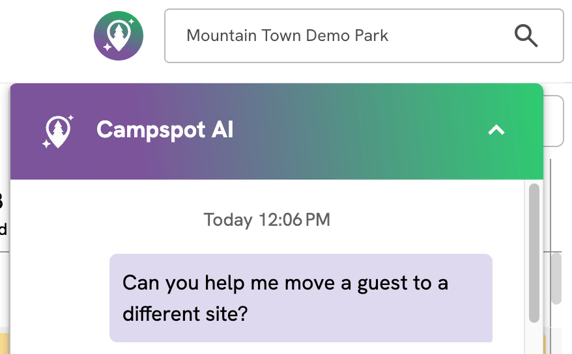
📌 Note: Campspot AI Assistant is currently only available for select parks on the Campspot Growth Package
Stay tuned for more updates & the full feature release by subscribing to Campspot Marketing communications (sign up near bottom)
Uses:
- Keep your front desk moving: Look up arriving guests, check someone in or out, and manage holds without opening a single reservation. On a busy check-in day, that kind of speed adds up fast.
- Turn multi-step workflows into a single instruction: Creating a new site type, adding its sites, and setting rates used to mean navigating Unit Setup, configuring each field manually, and then visiting Base Pricing separately. The assistant handles each of those steps conversationally, in a fraction of the time.
- Make rate decisions on the spot: Look up what a site type is currently charging, adjust rates across a date range by instruction, and undo a change if needed, all from the same conversation.
- Get answers without searching: Ask the assistant any how-to question about Campspot and get a direct answer, no KB search required. It also diagnoses availability issues and explains exactly why sites aren't showing up for a given search.
- Take action with confidence: Before completing any significant change, the assistant reads back what it's about to do and asks you to confirm, so nothing happens by accident.
⭐ Before You Begin:
The way you phrase a request matters: There is an important difference between asking a question, and giving an instruction.
"How do I check someone in?" is a question: the assistant answers it with steps & documentation.
"Check in John Smith" is an instruction: the assistant starts the check-in workflow. This distinction applies across everything the assistant does.
Your permissions shape what you see: The assistant's function list is filtered to the unique user permissions on your current "Role" assigned in User Management. An operator without an "Edit Base Pricing" permission will not see rate-setting options; one without front desk permissions won't see check-in functions. Asking the assistant "what can you help me with?" returns the functions available specifically to you.
🎤 Tip: The message box has a microphone button for voice input. What you say is converted to text in the input field; you review it, correct anything wrong, and send it yourself. The mic button appears in Chrome and Safari only at this time.
What Campspot AI Assistant Can Do:
Front Desk Tasks
Check a guest in:
Check in a reservation by confirmation number, site number, or guest name. If check-in can't be completed, the assistant names the specific reason (not yet arrived, already checked in).
Example prompts: "Check in confirmation #12345" · "Check in John Smith" · "Check in the Smiths"
Check a guest out:
Check out a guest by site or name. If checkout is blocked, the assistant identifies the reason (already checked out, or an outstanding balance).
Example prompts: "Check out site A12" · "Check out Tom Brown"
List who's arriving, departing, or in the park:
Ask about any day: the assistant understands "tomorrow" and "Friday" without being given a date, and defaults to today. Results exclude admin holds, and a shortened list is never presented as the complete picture.
Example prompts: "Who's arriving tomorrow?" · "How many checkouts today?" · "Who's in the park?"
Create Bookings
Campspot AI Assistant can create reservations, pencil-in holds, and admin holds.
Book a Reservation:
Creates a new reservation with a priced invoice for new or existing guests.
Example prompt: "Book John Smith on A12 for Friday"
Pencil-in a Booking:
Creates the reservation, converts it to a Pencil-In Hold expiring in 24 hours, and emails the guest a pay link. Requires an email address.
Example prompt: "Pencil in the John Smith for Labor Day"
Place an Admin Hold:
Creates an Admin Hold for blocking off sites for specific dates.
Example prompt: "Hold site B4 for next weekend"
📌 Note: When a booking is held pending a deposit decision, refreshing the page or navigating away loses the payment option buttons. The reservation remains on hold with an invoice against it: type your choice into the message box and the assistant picks it back up from there.
⚠️ Important: The assistant never captures card details in the conversation: that is a permanent security boundary, not a missing feature. Where a deposit is required, it holds the booking and asks how you'd like to handle payment: confirm without taking payment, take payment now (which opens the normal payment screen with the invoice loaded), or email the guest a pay link. Pay links can also be texted where your park has texting set up.
Edit Reservations
All four editing actions can include an optional price review before you confirm. Before confirming, the assistant checks your park's booking rules & site requirements, and names any restrictions that do not allow the edit.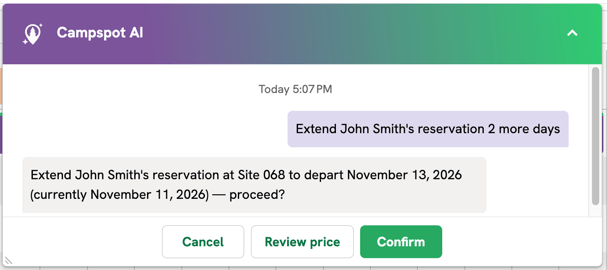
Extend a Stay:
Push the departure date out, pull the arrival date in, or both.
Example prompt: "Extend John Smith two more nights"
Shorten a Stay:
Trim nights from either end of the reservation.
Example prompt: "Shorten R0376 by a night"
Move to Different Dates:
Same site, new dates.
Example prompt: "Move John Smith to Aug 3–7"
Move to a Different Site:
Same dates, new site or site type.
Example prompt: "Move Clinton Best to Cozy Cabin CC01"
📌 Note: The AI Assistant recognizes the supported RV equipment types and minimum/maximum length requirements on each site, so guests won't be moved to a site that doesn't support their RV equipment type.
⭐ Learn More: How To Edit Reservations: A Quick Reference Guide
Guest Information
Look up a guest:
Retrieve a guest's contact information, address, current balance, current stay details, or number of current and upcoming reservations. Follow-up questions work in context: after looking up a guest by name, you can follow with "What site is he on?" without repeating the name.
Example prompts: "How many reservations does Clinton Best have?" · "What's his phone number?" · "Does he owe anything?"
📌 Note: Reservation counts reflect current and upcoming stays only. The assistant does not report on past reservations that have already taken place.
Update a guest's contact information:
Update a phone number or email address on a guest profile. The assistant shows current details for your review before saving. If the name matches multiple profiles, it returns a list to choose from.
Example prompts: "Update Alex Smith's phone to 989-708-2694" · "Change his email to..."
Guest Messaging
Text guests: Sends a text message to today's arriving guests, guests currently in the park, or both. That audience can be narrowed by site name, site type, or guest name.
Example prompts: "Text everyone arriving tomorrow" · "Text the guests on Pine Loop"
⚠️ Important: The assistant supports text messaging only — there is no email option through this workflow. If you ask it to "email everyone in the park," it will send a text instead, and the confirmation reads "Send a message to..." without specifying the channel. Always use the word text in your request so the result is exactly what you expect. Messages are SMS only, limited to 100 recipients per send, and cannot be recalled once sent.
📌 Note: For messaging select guests or any audience, use either the "Bulk Email Messaging" or "Custom Email" features available on the Front Desk. There is currently no way to text guests arriving on a future date, everyone in a site type across a season, or a custom guest group.
Learn more: Campspot Text Messaging: Setup Guide and FAQ
Site Management
Create a site type and its sites:
This is one of the most time-saving capabilities the assistant offers. Instead of clicking through Unit Setup, configuring each field, saving, and then returning to add individual sites one by one, you describe what you need and the assistant builds it.
It asks for the category, a name for the site type, how many sites, and a naming pattern. For RV sites, it also asks for minimum and maximum RV length and slide-out configuration. Pet-friendly and ADA status are always asked, and site creation is capped at 100 max per instruction.
Before confirming, the assistant validates and lists every site name it is about to create, so a wrong naming pattern is caught before anything is written.
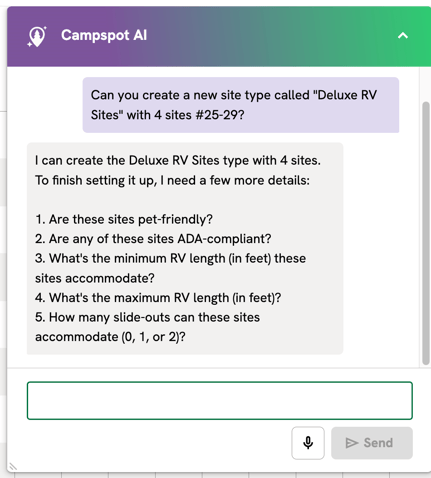
Example prompts: "Add 12 pull-thru sites" · "Set up a new cabin type with 6 cabins"
⚠️ Important: After creating a new site type, a few steps remain before it is ready for guests to book online:
- Set base pricing: The assistant can do this directly. Follow up with a rate instruction after the site type is created (see Add/Update Rates below).
- Configure rules: The assistant can create minimum and maximum stay length rules, arrival and departure day restrictions, pet limits, pet fees, taxes, occupancy limits, and occupancy-based fees for your new site type. You can also ask the assistant to add the new site type to your existing rules (recommended to keep your rule library tidy and avoid creating duplicates). For Cancellation policy, payment policy, and reservation fee rules, the site type must be added manually to those those rules.
- Add Amenities & RV Equipment: Amenities & RV Equipment for the site type and individual sites must be configured manually in Unit Setup. The assistant does not add amenities; this step ensures each site is accurately represented before guests see it.
Before making a new site type available for online booking, review its full rule configuration to confirm everything is in place.
📌 Note: When assigning financial accounts to a new site type, if your park's chart of accounts uses different account names than what setup expects, the assistant will ask you to identify the correct revenue and deferred revenue accounts from your park's own financial account list before proceeding.
⭐ Learn more:
Undo sites just created: Removes a site type and its sites that the assistant created — its own work only. A site type built through Unit Setup or a CSV import cannot be rolled back through the assistant. The assistant will refuse if any of the sites has a reservation attached and will tell you why. Site names are freed immediately after an undo, so a corrected re-run can reuse them right away.
Example prompts: "Undo that" · "Remove those sites you just made" · "Delete the Premium Pull-Thru sites you created"
Add/Update Rates
Set Base Rates:
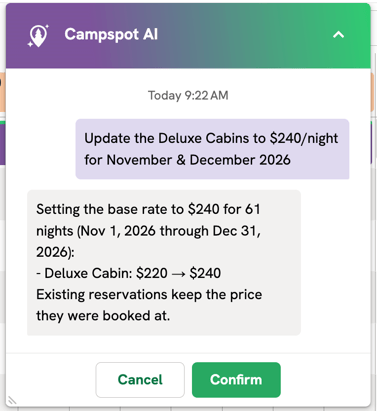
Sets the nightly base rate for one or more site types across a date range, by instruction rather than through the Inventory Grid or a Base Pricing upload. Before confirming, the assistant reads back what the range currently carries (a single figure, a spread, or "no base rate set") so you know exactly what you are replacing. Changes apply to future bookings only — existing reservations keep the rate they were booked at, and the confirmation makes that clear.
Example prompts: "Set the cabins to $150 for July" · "Raise RV sites to $95 Aug 1 through Aug 15"
Look up rates:
Reads back the nightly base rate and sell rate for a site type over a date range. Read-only — nothing is changed. The base rate comes from the live database; the sell rate comes from a data warehouse refreshed nightly. If a rate was changed today, the sell rate is reported as updating tonight rather than quoting a figure that may be outdated.
📌Note: The assistant reports nightly rates only. It does not calculate a total stay amount or factor in taxes, fees, or occupancy charges.
Example prompts: "What are the cabins going for in July?" · "What's the rate on RV sites next weekend?"
Undo a base rate change: Reverses the last base rate change the assistant made, night by night, restoring each night to what it held before. If another user has edited some of those same nights since, only the untouched nights are restored — nights already changed by someone else are left alone.
Example prompts: "Undo that rate change" · "Put the cabin rates back"
Creating and Modifying Rules
Campspot's AI Assistant can create & update certain "Rules" in Campspot, listed below.
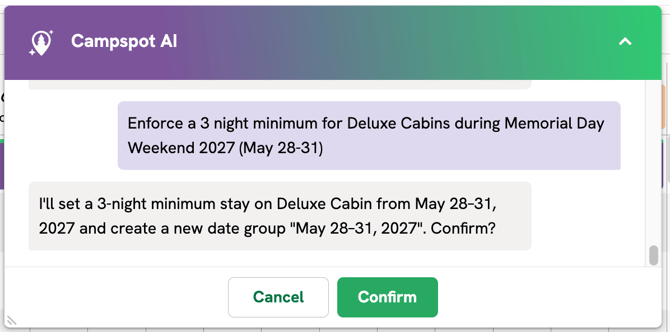
⚠️ Important Disclaimer: The assistant confirms what the rule now says, not what that will do to upcoming bookings. Rule precedence between overlapping date groups can be subtle — review your rules page after making changes that affect overlapping periods.
Set up booking rules:
Creates booking rules by instruction — no need to navigate the Rules screen and configure each field manually. Supported rule types include minimum and maximum stay, arrival and departure day restrictions, pet limits, pet fees, taxes, occupancy limits, and occupancy-based fees.
Example prompt: "Block Saturday arrivals on the cabins for July"
Change a rule the park already has: Updates an existing rule's dates, the site types it covers, or the values it sets. Unlike closures and online blocks, this is not limited to rules the assistant created — it can modify rules made by hand in the Admin Site as well. Rules are identified by description rather than name (for example, "the cabin minimum in July"). If more than one rule matches the description, the assistant lists them and asks which to change.
Note: The assistant confirms what the rule now says, not what that will do to upcoming bookings. Rule precedence between overlapping date groups can be subtle — review your rules page after making changes that affect overlapping periods.
Example prompts: "Change the cabin minimum stay to 3 nights" · "Raise the max stay on the cabins to 21 nights" · "Extend that closure through the 20th"
⭐ Learn More:
- Rules: What's on the Page?
- Reservation Rules: What's on the Page?
- Minimum Length of Stay: Rule Setup & FAQ
- Maximum Length of Stay: Rule Setup & FAQ
- No arrivals or departures on _ day of the week: Rule Setup & FAQ
- Occupancy Limits: Min/Max Age Groups: Rule Setup
- Occupancy-based Fees: Rule Setup
- Pet Occupancy: Rule Setup
- Pet Fees: Setup
- Taxes: Rule Setup
Undo a rule it made or changed: For rules the assistant created, it removes the rule entirely. For rules it modified, it restores only the fields it changed — any edits another user made to other fields on that same rule are left alone. Removing everything at once requires typing REMOVE ALL OF THEM. Rules set up manually in the Admin Site that the assistant has not touched cannot be undone through the assistant — it answers those as how-to questions instead.
Example prompts: "Undo that" · "Undo the minimum stay change on the cabins"
Manage Site Availability
Place an Admin Hold:
Creates an Admin Hold for blocking off sites for specific dates.
Example prompt: "Hold site B4 for next weekend"
Take a site type offline:
Stops a specific site type from selling on your consumer site without affecting the rest of your park. The park remains open and all other site types continue to sell normally.
Example prompts: "Stop selling the cabins online next weekend" · "Take the RV sites off the website for July 4th"
Close the resort:
Closes the entire park for a given period. Resort closures are always park-wide — there is no partial closure. This action requires typing APPLY TO ALL SITES to confirm.
Example prompt: "Close the resort for Labor Day"
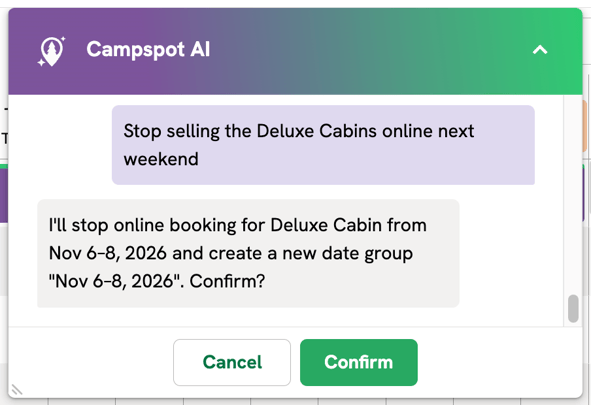
⭐ Learn more: Resort Closed: Rule Setup & Cannot Be Reserved Online: Rule Setup
Undo a closure or online block: Reverses a resort closure or site type block the assistant created. Rules set up manually through the Admin Site cannot be undone through the assistant — it will answer those as how-to questions instead. Removing everything at once requires typing REMOVE ALL OF THEM.
Example prompts: "Undo that" · "Put the cabins back online" · "Reopen the resort"
Help and Getting Around
Answer how-to questions: Ask any question about how Campspot works and get a direct answer pulled from Campspot's product documentation and Knowledge Base. If you ask how to do something the assistant can also handle directly, it may answer with step-by-step guidance rather than launching the workflow.
Example prompts: "How do I create an occupancy rule?" · "Where do I set up taxes?"
Navigate to a section of Campspot: Takes you to any page or section in the Admin Site on request. Simply ask to be taken somewhere and the assistant navigates directly.
Example prompts: "Take me to reports" · "Go to the booking grid" · "What can you navigate me to?"
Diagnose availability: Investigates why a site type is not showing as available for certain dates by checking your park's own configuration — whether the type is active, whether sites exist, whether an occupancy rule is in place, whether a closure covers those dates, and how many sites are open. The assistant reports only causes it can confirm and says plainly when it cannot identify the reason.
Example prompts: "Why are no camping cabins showing as available for 8/13-8/17?" · "The yurts should be bookable next weekend but they aren't"
What the Assistant Won't Do
The assistant is upfront about its limitations and always tells you where to go in the Admin Site when something falls outside what it can handle.
Move a reservation into a site that does not support the RV Profile: The AI Assistant recognizes the supported RV equipment types and minimum/maximum length requirements on each site, so guests won't be moved to a site that doesn't accommodate their equipment type
Capture card details in the conversation: This is a permanent security boundary, not a gap waiting to be filled. Card details will never be taken in a chat window. There is always a payment path available — the assistant hands off to the payment screen with the invoice loaded, or emails or texts the guest a pay link.
Cancel a reservation: Not yet supported. The assistant will point you to the Cancel Reservation screen on the Reservation Summary. For steps, visit our guide How To: Cancel a Reservation.
Apply a discount or change a rate on an existing booking: Not currently supported. Use the Billing tab or Advanced Edit on the Reservation Summary.
Price a hypothetical stay: The assistant can look up nightly rates, but it does not calculate a total cost for a stay that hasn't been booked yet. That calculation includes taxes, fees, and occupancy charges that vary by reservation. A reservation that is actually created does produce a full priced invoice.
Report on a guest's past reservations: Guest lookup covers current and upcoming stays only.
FAQ:
The assistant does not seem to offer a function I expected. Why? The function list is filtered to your user permissions. If a capability is not showing up, your role may not include the required permission. Contact your park administrator to review your role in User Management.
How do I know what the assistant can help me with? Type "What can you help me with?" and the assistant returns the full list of functions available to your specific role.
Will the assistant confirm before making changes? Yes. Before completing any significant action, the assistant reads back exactly what it is about to do and asks you to confirm. Nothing is changed until you approve it.
What if the assistant gives me an answer I am not sure about? For any question the assistant cannot answer confidently, it will say so directly and point you toward Campspot Support or the relevant section of the Admin Site or Knowledge Base. You can also reach Campspot Support at any time via the support options in your Admin Site.