.png?width=200&height=150&name=campspotlogo2019%20(1).png)
Summary:
The Email button on a Reservation Summary gives staff a quick way to send a guest any email relevant to their specific reservation. Every email sent this way is tracked in the reservation's history, so your team always knows what was sent, when, and who sent the email.
Uses:
- Resend Lost Info: Send a fresh copy of a reservation confirmation if a guest can't find their original email.
- Share Payment Proof: Send a payment or refund confirmation after processing a transaction.
- Speed Up Check-In: Send the Online Check-In link or a gate access code directly to the guest's inbox.
- Prompt a Signature: Send the Terms & Conditions acceptance link to a guest who hasn't signed yet.
- Notify of Charges: Alert a guest immediately when a new fee or add-on has been added to their reservation.
Instructions:
Step 1: Open the Reservation Summary
Navigate to the reservation using the Reservation Grid, Reservation List, or Front Desk. Click the reservation to open the Reservation Summary.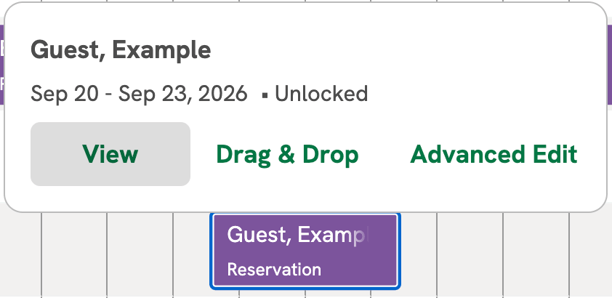
Step 2: Click the “Email” Button
- At the top of the Reservation Summary, click the Email button.

Step 3: Select Your Email
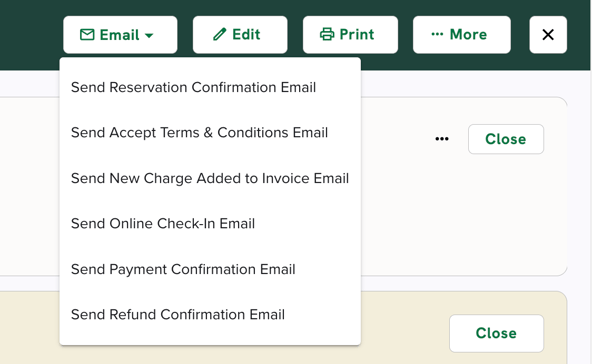
A list of available emails will appear. Depending on the reservation, you may see:
- Reservation Confirmation: Resends the Confirmation Email with a unique "Reservation Detail Link" that includes the standard booking summary with stay details, invoice details, payment history, and Terms and Conditions.
- Accept Terms and Conditions: Sends a direct link for the guest to review and sign your park's Terms and Conditions.
- Pre-Arrival: Sends a summary of important arrival details to help guests prepare for their stay.
- New Charge Added to Invoice: Notifies the guest that a new fee or add-on has been added to their balance.
- Online Check-In: Sends the link for the guest to check in from their own device.
- Payment Due: Notifies the guest of an outstanding balance on their reservation and provides a direct link to make an online payment quickly and securely.
- Payment Confirmation: Sends a receipt for a successful payment.
- Refund Confirmation: Sends a receipt confirming a refund has been issued.
- Pre-Departure: Sends check-out times and departure instructions, and can be used to invite guests to extend their stay at your park.
- Post-Departure: A follow-up message sent after check-out, typically thanking the guest for their visit and providing a link to a feedback survey or an offer to book again.
- Lock Code: Sends the digital access code for the guest's specific site (available for parks using digital lock systems integrated with Campspot, like RemoteLock).
Learn More! Check out the link below to learn more about customizing emails sent out from your park
Step 4: Send
- Click the email type you want to send. It will immediately send to the email address on the guest's profile.
- Each email sent through Campspot has the guest's unique "Reservation Detail Link" which acts as a "guest portal" that provides a live, up-to-date view of their reservation and invoice details. This link allows guests to perform an Online Check-In (if enabled), accept Electronic Signature Terms and Conditions (if enabled), complete an Online Cancellation (if enabled), and view invoice details and payment history, and pay their reservation balance securely online. You can view a guest's Reservation Detail link by navigating to the Billing Tab of a Reservation, and clicking the "Link" button at the top.
Step 5: Confirm in Reservation History
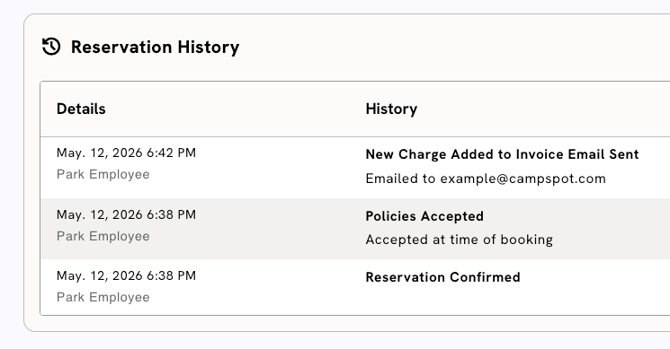
- Click the Reservation History section located at the bottom of the Reservation Summary Tab to see a record of the email you just sent.
Common FAQs:
Q: Why are some email options hidden in the list?
A: The system uses "smart logic" to ensure only relevant emails are sent. For example, a "Refund Confirmation" will only be an option if a refund has actually been processed, and "Online Check-In" is only available if the Online Check-In feature is enabled, and the reservation has reached the check-in window.
Q: Can I view or edit the email before sending?
A: Most emails source their content from the fields in Campground Setup>Messaging, and many of these emails can be customized. Click here to learn more about customizing your emails in Campspot to fit your park's brand and communication style.
Q: Will I know if the email was sent?
A: You can see that the email was successfully "sent" in the Reservation History section. This includes the date, time, and who sent the email.
Q: What if the guest wants the email sent to a different address?
A: Manual emails are sent to the primary email address on the guest's profile. To send it elsewhere, update the email address on the guest profile before clicking the send button.