.png?width=200&height=150&name=campspotlogo2019%20(1).png)
Summary
If you're having trouble with your tracking setup, whether it's Google Analytics, Facebook Pixel, Google Ads, or cross-domain tracking, this guide outlines the most common issues park operators run into and exactly how to troubleshoot them. From verifying your Google Tag Manager setup to resolving data discrepancies in your reports, use the step-by-step instructions below to ensure your tracking is accurate and working as intended.
⚠️ Please note: Campspot support is limited to the documentation provided and assistance with initial setup recommendations. We are not able to troubleshoot custom configurations, third-party scripts, or advanced analytics strategies outside of this guidance.
Content
How To Confirm GTM Is Installed Correctly
1. Google Analytics field appears to be doing something, but isn't
2. Facebook PIxel or Meta isn't tracking
3. GTM is not working or firing correctly
4. Google Analytics 4 or GA4 data isn't showing up or looks wrong
5. Facebook is showing inaccurate or inflated purchase data
6. Google Ads tracking is not reporting purchases correctly
7. Can't see where guests are coming from (referral sources)
8. You're seeing duplicate page views in GA4
9. If you're wondering “Can I get the URL guests see after completing a reservation?”
Learn More! Check out these resources for even more information about Google Analytics:
Common Mistakes to Avoid
- Incorrect GTM ID Format: The GTM field in your Campspot Admin must use the format GTM-XXXXXXX (this is not the exact, number and the X's are in place of real numbers in this instance).
No extra characters, no typos. - Using Deprecated Fields: Do not use the Google Analytics, Facebook Pixel, or Adwords fields in the Admin panel. These fields are tied to legacy setups and are best implemented with GTM.
Get a step-by-step guide on finding your GTM ID [HERE].
How to Confirm GTM is Installed Correctly
- Visit your consumer site and use the Google Tag Assistant extension.
- You should see your GTM container load successfully on every page.
- If it doesn’t load:
- Double-check the GTM ID entered in Campspot Admin > Analytics
- Make sure there are no formatting errors
How to Test a Real Booking
Because conversion events only trigger on live bookings:
- Create a test discount code to reduce charges (add optional)
- Make a real booking on your site
- Watch events appear in Debug View or Tag Assistant
- Cancel the test booking afterward
Troubleshooting Scenarios
1. Google Analytics field appears to be doing something, but isn’t
A. How to troubleshoot:
-
Go to Consumer Site Admin > Analytics.
-
If the Google Analytics field is filled in, remove it. This field was built for Universal Analytics (which is now deprecated) and will no longer populate data into any connect analytics account via this field.
-
Don’t worry — having something in this field won’t break anything, but it will no populate data and may be confusing and give a false sense that tracking is working.
-
Instead, follow our GA4 setup instructions to install analytics correctly.
2. Facebook Pixel or Meta tracking isn’t working
A. How to troubleshoot:
-
If you're using the Facebook Pixel field in Consumer Site Admin > Analytics, that may be the issue.
-
We no longer recommend using that field — instead, install the Pixel via Google Tag Manager.
-
Follow our setup step-by-step to ensure proper tracking.
3. Google Tag Manager (GTM) is not working or firing correctly
A. How to troubleshoot:
-
In Consumer Site Admin > Analytics, check that the Google Tag Manager field is populated and formatted correctly:
-
Format must be:
GTM-XXXXXXX(no extra spaces or characters).
-
-
An incorrectly formatted GTM ID will prevent your tags from firing.
⚠️ Don’t forget to publish your GTM changes
Google Tag Manager allows you to make changes in the workspace, but those changes won't go live until you click “Submit” and publish your container.
If your tracking isn't working as expected—even though your GTM setup looks correct—this could be the issue.
To check:
-
Go to your GTM account
-
Look at the top bar of your workspace.
-
If you haven’t published your changes, you’ll see an option to Submit — click that and follow the prompts.
We recommend always publishing and then refreshing your browser (or checking with GA4 DebugView) to confirm the changes took effect.
4. Google Analytics 4 (GA4) data isn’t showing up or looks wrong
A. How to troubleshoot:
First, how did you install GTM?
-
If you used our import method, make sure that you completed all the steps especially:
-
Steps 3e, 3f, and 3g — these are easy to miss but required for accurate reporting.
-
Next, check for data in GA4:
-
In GA4, go to Reports > Traffic > Pages and Screens. Do you see your Campspot traffic?
-
If not, check under Library to add the Traffic report section.
-
Then, check for purchase data:
-
Go to Reports > Monetization > Ecommerce Purchases or Transactions.
-
If not visible, add it via the Library.
-
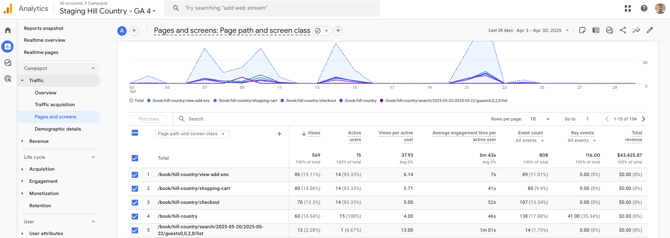
Last, check where bookings are coming from:
-
In the Monetization reports, use the + button to add the Source/Medium dimension.
5. Facebook is showing inaccurate or inflated purchase data
A. How to troubleshoot:
-
Facebook relies on automatic event detection, which can mislabel actions.
-
Example: Facebook may mistake “Add to Cart” for “Purchase,” inflating revenue data.
-
-
Fix this by reviewing and editing events manually in Facebook Events Manager.
-
After setup, always validate your events to make sure reporting is accurate.
6. Google Ads tracking is not reporting purchases correctly
A. How to troubleshoot:
🚫 Don’t use the Adwords Conversion Label or Conversion ID fields in Consumer Site Admin — they’re unreliable.
Instead:
-
Set up Google Analytics 4 (GA4) via GTM.
-
Connect Google Ads to GA4.
-
In Google Ads, import the “purchase” conversion event from GA4.
OR add Google Ads tags via GTM:
-
If you're using GTM, add:
-
Tags with the following variables (case-sensitive!):
-
Currency Code: “USD” or “CAD”
-
Conversion Value:
transactionTotal(Data Layer Variable) -
Transaction ID:
transactionId(Data Layer Variable)
-
7. Can’t see where guests are coming from (referral sources)
A. How to troubleshoot:
-
This usually means cross-domain tracking isn’t enabled between your website and your Campspot booking site.
-
Without it, referral info (e.g., from Google Ads or Facebook) is lost when the user moves to the booking engine.
Fix it:
Test it:
-
After setup, links from your main website to your Campspot booking site should include extra parameters for example:
https://www.campspot.com/book/yourpark?_gl=1*abc123*_gcl_au*MTQ0ODM1MzE4My4xNzQ2MTA5OTg1
8. You're seeing duplicate page views in GA4
A. How to troubleshoot:
Duplicate pageviews usually happen when your Google Tag Manager setup is sending more than one page_view for the same page load.
Check your GA4 Configuration tag:
-
Open Google Tag Manager and select your GA4 Configuration tag.
-
In the tag settings, find the checkbox labeled:
“Send a page_view event when this configuration loads.”
Fix it:
-
Uncheck that box.
-
This disables the automatic page_view, allowing you to control it manually (especially if you're using a dedicated Event tag to send pageviews).
Test it:
-
Use GA4 DebugView or Google Tag Assistant to confirm that only one page_view event is firing per page load.
9. If you're wondering “Can I get the URL guests see after completing a reservation?”
Here’s what you need to know:
This URL won't help in your setup as we don’t track conversions based on that URL. Instead, our system tracks bookings through the “purchase” event sent by Google Analytics or Google Tag Manager, which is more accurate and reliable.
If you’re asking for that post-booking URL, it usually means the purchase event tracking isn’t set up correctly yet.
What you should do:
-
Check your GA4 purchase event setup following the steps in Issue #4.
-
Confirm your Google Tag Manager container includes the proper tags and variables for purchase tracking.
Tracking by purchase event means you won’t have to worry about relying on URLs, which can change or be skipped.