.png?width=200&height=150&name=campspotlogo2019%20(1).png)
Introduction
The "Move Sites to a New Site Type" feature allows you to change the site type association for existing sites without having to delete and recreate them. This highly anticipated tool now supports moving sites within the same category or across different site categories, and ensures that existing reservations, utility meter readings, and the site tile on your park map all stay with the site during the move!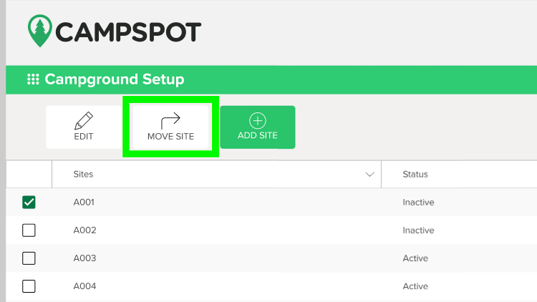
Time-Saving Features
As park operators reevaluate their park layouts or upgrade their inventory, they frequently need to change the site types associated with their units. Prior to this feature release, customers had to rely on a manual internal process where support staff prepare a site change template, and developers run the a site transfer task. With this new feature, site changes can happen in minutes rather than hours, and ensure invoice accuracy, utility meter tracking, and much more!
-
Reservation Handling: When changing site types, all current and future reservations will automatically move with the site type, honoring the original price the site was booked at
- Pricing: Existing reservation with retain their original price on the invoice, and new bookings created after the move will use the new site type's pricing and pricing rules
-
Park Map: When changing sites to a new site type, the site "tiles" on the map stay assigned to the site, as opposed to manual reassignment
-
Utility Metering & Integrations: Utility Meter readings will stay assigned to the site during the move, along with configurations like Remote Lock & Wild Energy integrations
-
Site Numbers: The new feature prevents duplicate sites from being created, as it will prevent a move if a site exists within the new site type with the same site number.
Preparation Checklist
To ensure a successful transfer:
- Check Role Permissions: Verify you have the "Edit Unit Setup-Site: Move Site to New Site Type" permission enabled on your assigned "Role" in User Management.
-
Configure Destination: Ensure the new site type has the correct Add-ons (Nightly, Day Use, Online Store).
-
Set Future Pricing: If moving to a new site type, ensure that Base Pricing is updated for the new site type for all future bookings.
-
Backup Data: Download a Rent Roll report for the current date and future dates to use for verification once the move is complete.
Setup Process
Step 1: Navigate to Unit Setup
- Navigate to Campground Setup.
- Select the Unit Setup tab.
Step 2: Select a Site Type
- Click the preferred Site Category (Tent, Lodging, RV Sites or Other).
- Click the Site Type name to be updated.
Step 3: Select a Site
- Click the check box in front of the Site you'd like to move
- Select the "Move Site" button above
Step 4: Choose the New Site Type
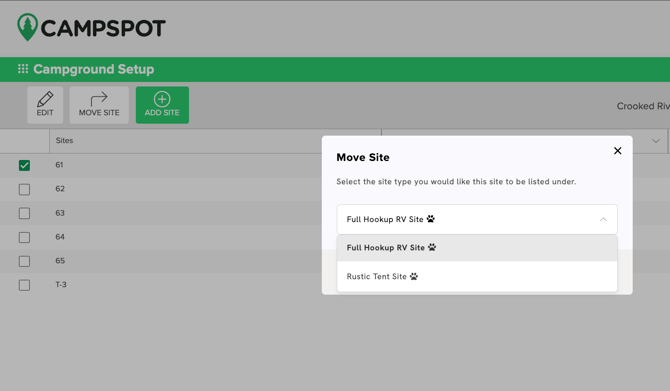
- Select the Site Type you wish to move the site to
- Select "Move Site" to continue
Step 5: Review Changes
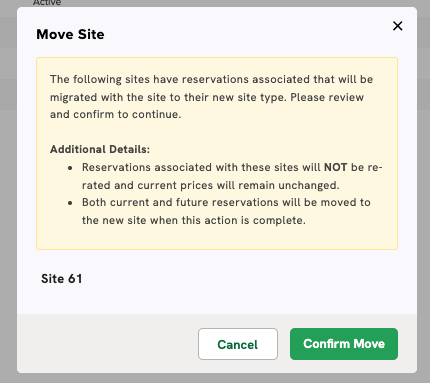
- Review the details of the site change, which includes the total number of reservations, pencil-in holds, and admin holds that are currently on the site
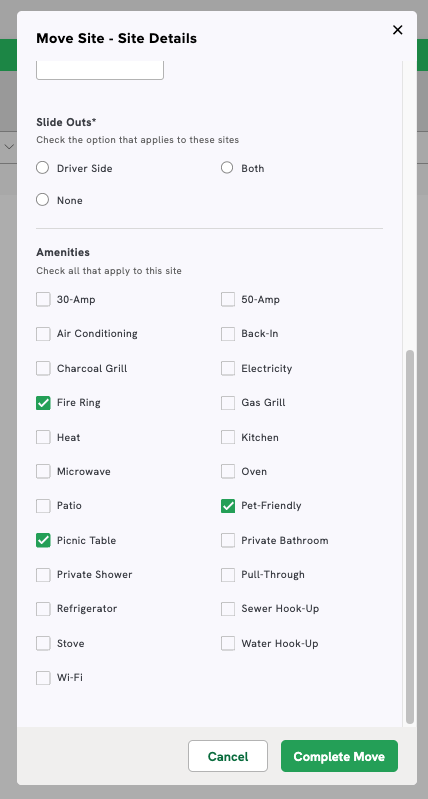
Note: If moving from a non-RV site to RV site, the feature will recognize this, and additional information will be required to ensure site details and amenities are accurate.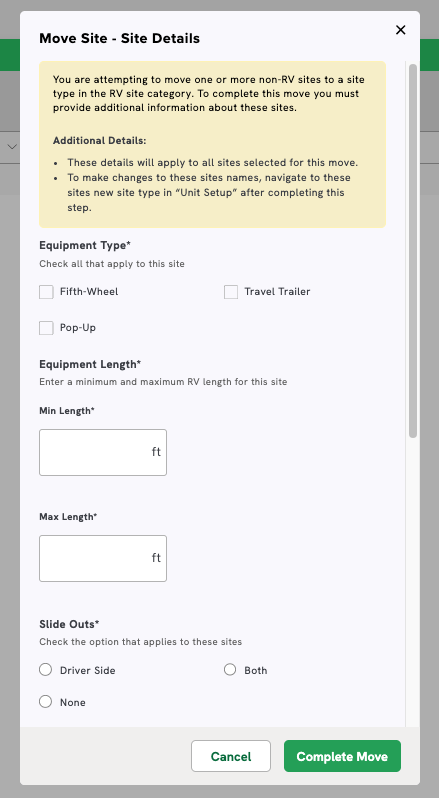
Step 6: Confirm Selection
- Select "Confirm Move" to finalize changes
Frequently Asked Questions:
Q: Do I need to move reservations manually after moving a site?
No. All current and future reservations are automatically moved with the site.
Q: Will existing reservations keep their original pricing?
Yes. Existing reservations retain the price they were originally booked at. Only new reservations will use the new site type’s pricing.
Q: Can I move multiple sites at once?
Yes, you can select and move multiple sites in a single action.
Q: Do I need special permissions to move sites?
Yes. Your role must include the Move Site to New Site Type permission under Roles>Permissions>Unit Setup.
Q: How does this affect Utility Meter Readings?
Utility meter readings and integrations (such as Remote Lock or Wild Energy) remain connected to the site.