.png?width=200&height=150&name=campspotlogo2019%20(1).png)
Summary:
Campspot now offers an optional Multi-Factor Authentication (MFA) feature to help parks increase account security. MFA adds an extra verification step when logging in, helping protect against unauthorized access.
This feature is completely optional for all parks. Admins and users can choose to enable it individually at any time.
This guide walks you through how to enable and use this feature.
What Is Multi-Factor Authentication?
Multi-Factor Authentication (MFA) requires users to verify their identity using a second step, beyond just a password, when logging in.
Campspot currently supports email-based MFA, where users receive a verification code sent directly to their email.
Enabling MFA helps:
-
Protect admin accounts from unauthorized access
-
Reduce risk if a password is compromised
-
Provide an extra layer of account security
Key Features of mfa
-
Optional: Parks and individual users decide whether or not to enable MFA
-
Email-based verification: A one-time code is sent to the email associated with your Campspot Admin account
-
“Remember Device” Option: Users can choose to trust their device for 30 days, skipping MFA during that period
-
Easy to enable/disable: Managed in Account & Settings
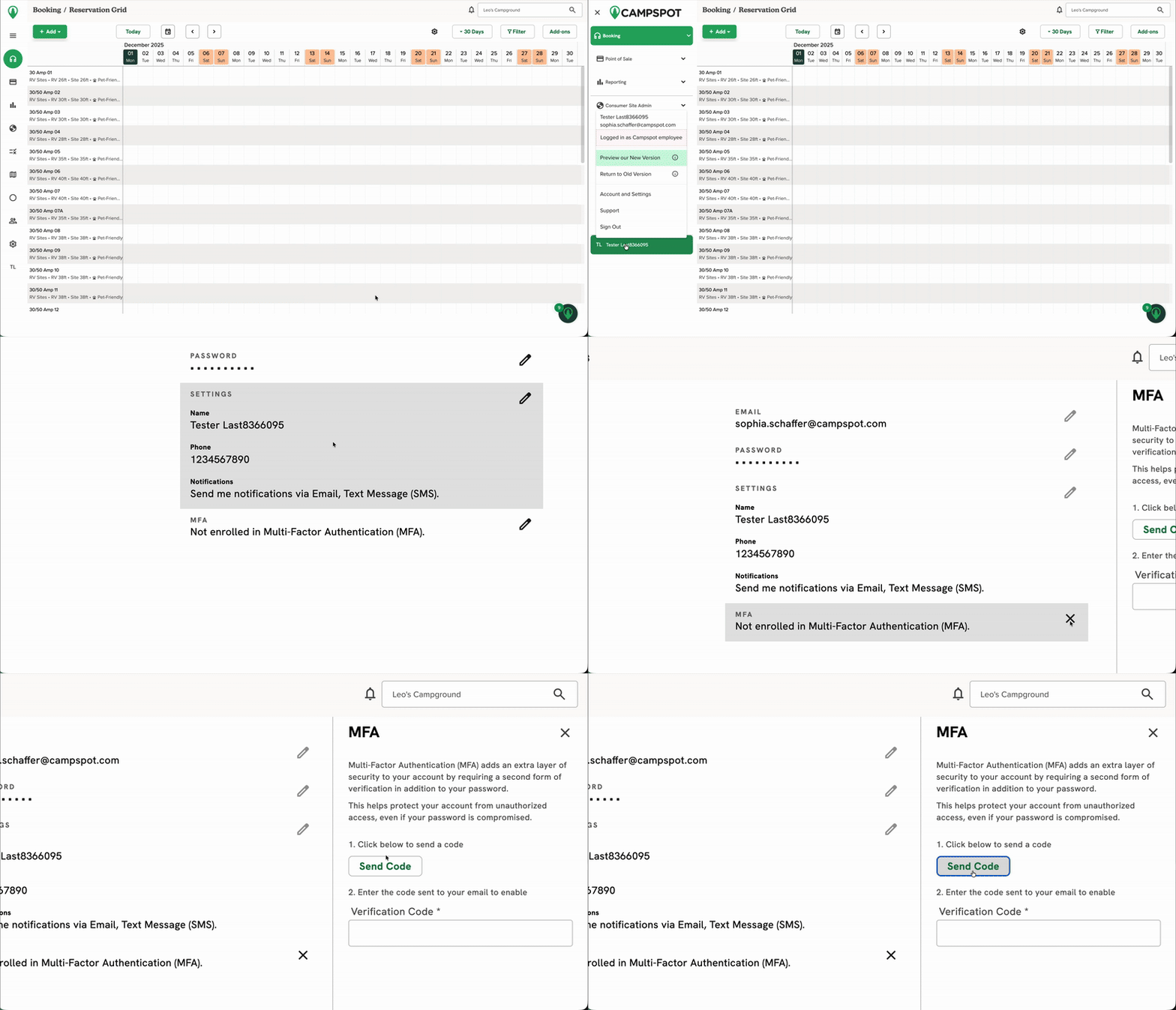
How to Enable MFA step-by-step
Follow these steps to turn on MFA for your user account:
-
Log into the Campspot Admin site
-
Click your initials in the top right corner of the legacy version of Campspot or at the bottom the expanded left navigation in the new version of Campspot
-
Select Account & Settings
-
Click the pencil icon in the MFA category
-
Click the Send Code button
-
Enter the verification code sent to your email
- Click Save at the bottom of the page
Once completed, MFA will be active starting with your next login.
The soundless clip below shows this process.
How to disable mfa
To disable MFA, follow the same steps as you would to enable MFA (shown above). If it is enabled, you will notice the word "disable" at number 2 in the MFA modal. Refer to the image below.
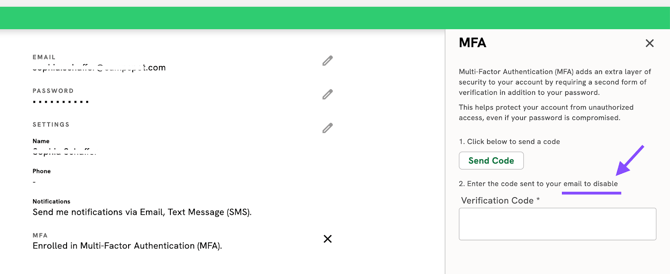
Once completed, MFA will no longer be active at your next login.
How MFA Works When Logging In
-
Enter your email and password as usual
-
Campspot sends a one-time verification code to your email
-
Enter the code to complete your login
-
If you selected “Remember this device for 30 days”, you will skip MFA for future logins on that device for the next 30 days
FAQs
Q: Is MFA required?
No. MFA is optional for all parks and all users.
Q: Do all users at a park need to enable it?
No. MFA is configured per user, not at the park level.
Q: What notification method do you support?
Email MFA is currently the only supported method.
Q: Can I skip the MFA step?
Yes, you may select “Remember this device for 30 days” to bypass MFA temporarily on trusted devices.
Q: What if I don’t receive the code?
Check your spam/junk folder, or verify that you're checking the email account that matches the one you use to login to Campspot.