.png?width=200&height=150&name=campspotlogo2019%20(1).png)
Summary:
When managing electric meters, there are times when the "Rollover Value" (the point at which a meter resets to zero) needs to be changed. Our system provides two ways to handle this update to ensure your billing remains accurate.
Accessing the Rollover Update
- Navigate to the Metered Site settings.
- Select the Electric Meters tab.
- Locate the Rollover Value field and enter the new value.
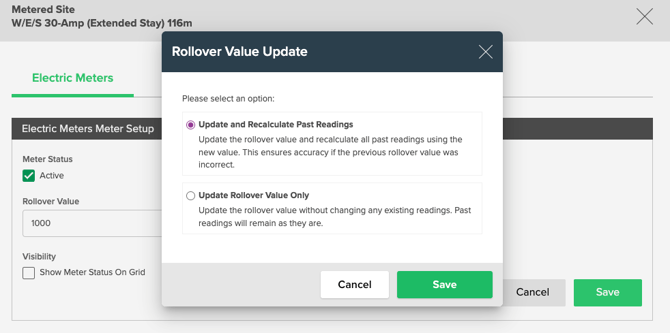
- Click Save. A "Rollover Value Update" window will appear with two options.Select the "Edit Reading" button from the options that appear.
Which option should I choose?
Option 1: Update and Recalculate Past Readings
Best for: Correcting a setup error. If a meter was accidentally configured with the wrong rollover value from the start, your past "deltas" (the usage between readings) might be incorrect.
- What happens: The system will look at your history and recalculate past usage based on the new, correct rollover value. This aligns your digital records with the physical reality of what occurred on the meter.
Option 2: Update Rollover Value Only
Best for: Hardware replacements or meter swaps. If you are replacing an old meter with a new one that has a different rollover limit, you usually want to preserve your existing records.
- What happens: Past readings remain unchanged. The new rollover value will only apply to future readings.
- Pro Tip: After replacing a meter and updating this value, we recommend entering a "dummy read" (a baseline reading of 0 or the current start value) to reset the logic for the new hardware.
FREQUENTLY ASKED QUESTIONS
Q: Will this affect my customers' past invoices?
Updating and recalculating past readings will change the data in the system. While it won't automatically "re-bill" a customer for a finalized period, it will change the usage history associated with those dates. Always use the "Recalculate" option with caution.
Learn More: Check out additional resources that may be relevant to this topic: