.png?width=200&height=150&name=campspotlogo2019%20(1).png)
Summary:
This article provides step-by-step instructions on making multisite reservations using the Reservation Grid in Campspot.
Uses:
Learn how to efficiently book reservations with multiple sites on them for guests, apply discounts, and manage payment methods using the Reservation Grid.
What is a Multisite Reservation?
A multisite reservation allows a guest—or your park staff—to book multiple sites under a single confirmed reservation. Key characteristics include:
-
One invoice: All sites are paid for together under a single reservation.
-
Single guest name: The reservation remains under the name of the booking guest.
-
Flexible site selection: Guests can choose different sites for different dates, or multiple sites for the same dates.
-
Ideal for families or groups traveling together.
Important:
Multisite reservations are not the same as group reservations:
-
Sites cannot be assigned to different guests.
-
The reservation cannot be converted into a group booking.
-
All sites must be fully paid before any individual site can be checked out—even if they have different departure dates.
Instructions:
1. Access Booking and Start a New Reservation:
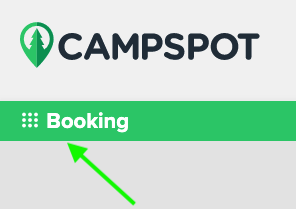
- Select Booking from the main navigation. You will be navigated to the Reservation Grid.
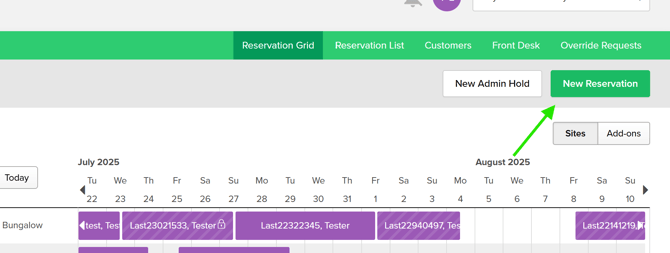
- On the Reservation Grid, click the green New Reservation button on the right side of the screen.
2. Search Available Sites:
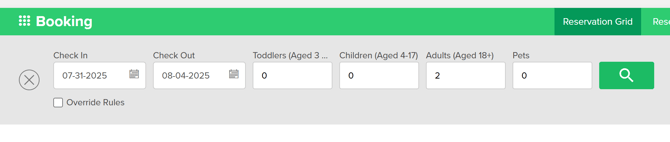
- Select Check-In and Check-Out dates.
- Click the green magnifying glass button to search for available sites.
Tip: Enhance your search by using the Filter By options on the left.
3. Select and Reserve a Site:
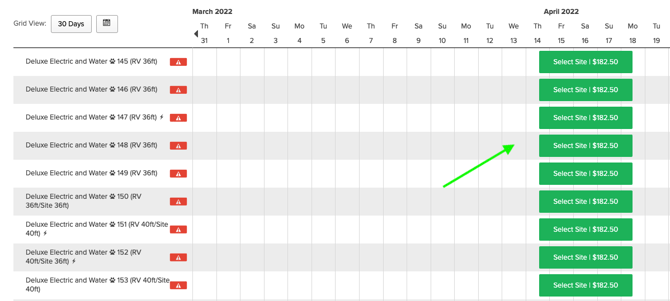
- After searching, the Reservation Grid will display available sites matching your criteria.
- Green 'Select' buttons appear for available sites.
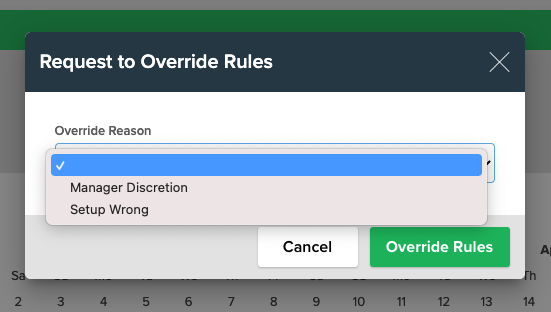
Tip: If no sites are available and you believe there should be, you can override rules by checking the Override Rules box and selecting a reason. Managerial privileges may be required to Override rules.
4. Site Selection and Cart:
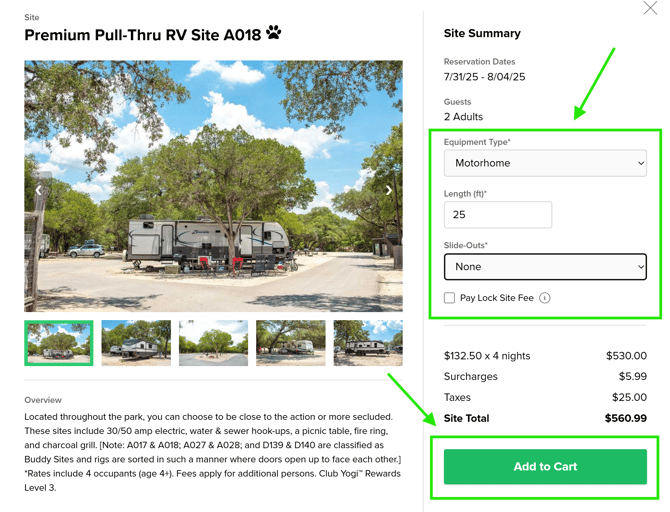
- Choose the site to reserve and enter any RV equipment information (if required).
- Indicate if you are locking the site (A Flexible Lock Site Fee may be required based on your park's requirements. This fee can be automatically applied to the booking given system rules).
- Click "Add to Cart."
5. Search For Additional Sites:
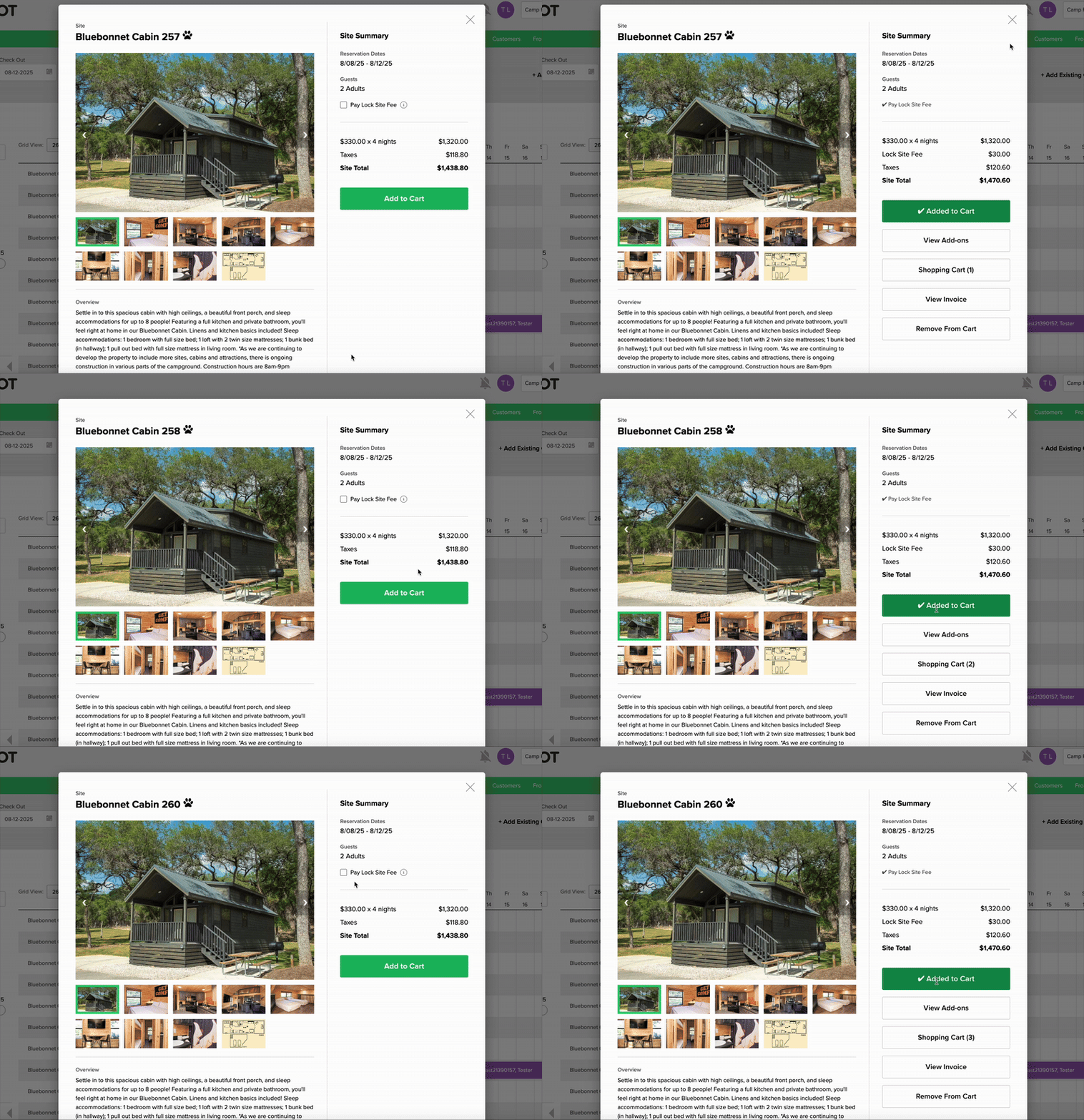
To add another site to the reservation, click the X in the top-right corner of the Site Summary modal. This will return you to the Reservation Grid.
You now have two options:
-
Select a different site directly from the grid using the existing search parameters.
-
Or, start a new search if you need different dates, number of guests, site types, or other filters. Simply adjust your search criteria and click the green magnifying glass button again to refresh available options.
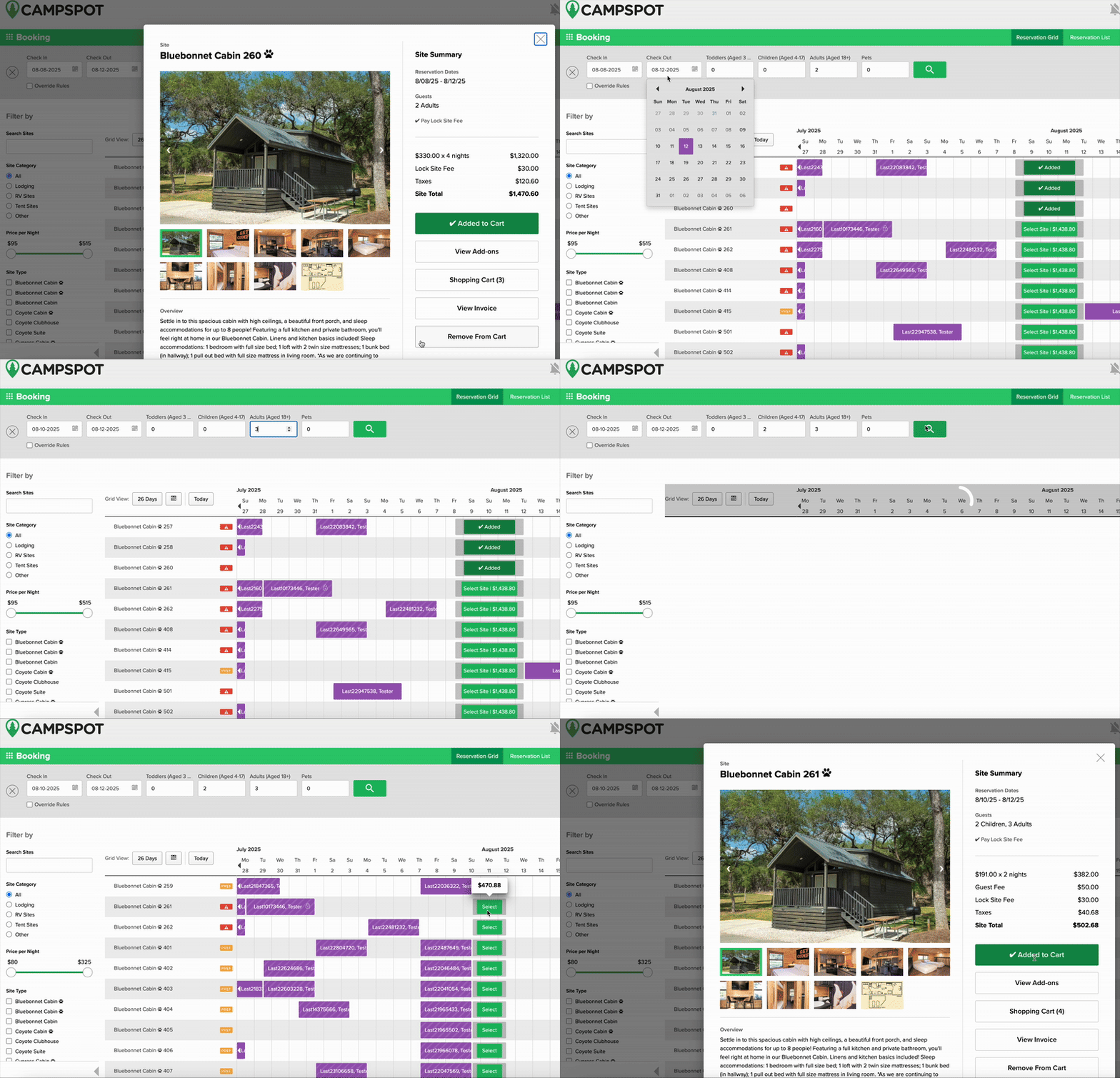
Once you've selected the next site, click Add to Cart.
Repeat this process for as many sites as needed before proceeding to checkout.
💡 Tip: Multisite ≠ Group Reservation
Even though you're booking multiple sites, a multisite reservation is still under one guest name and one invoice. These sites cannot be assigned to different guests or converted to a group reservation.
All sites must be fully paid before any can be checked out, even if departure dates differ.
5. Proceed to Checkout:
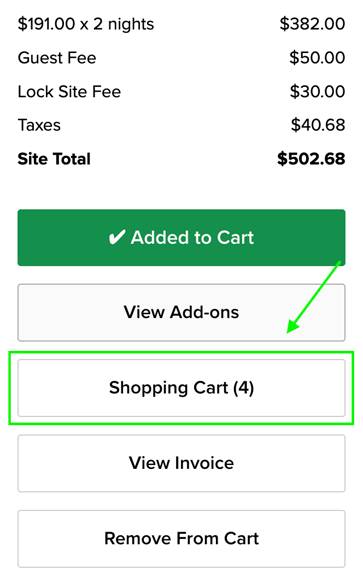
- Click the Shopping Cart button on the Site Summary window.
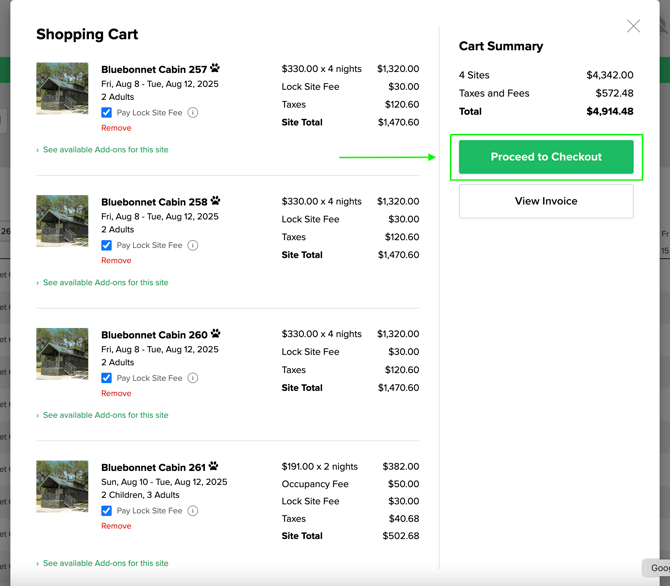
- From the Shopping Cart, click "Proceed To Checkout" to enter guest information.
6. Guest Information and Payment:
- On the first checkout page, enter guest contact and billing information. There can only be one guest on a multisite reservation so you will be required to fill this information out once here
- If the guest has reserved before, use the green "Select Existing Guest" button to search for and autofill their information.
- Apply promo codes or discounts if needed.
- Ensure all required information is filled out. The reservation cannot be processed without filling out the required information.
- Click "Continue to Payment."
Note: If your guest has an address outside of the United States, select their country first to adjust the phone number and postal fields in order to enter accurate information.
.gif?width=600&name=ezgif.com-gif-maker%20(45).gif)
7. Payment and Confirmation:
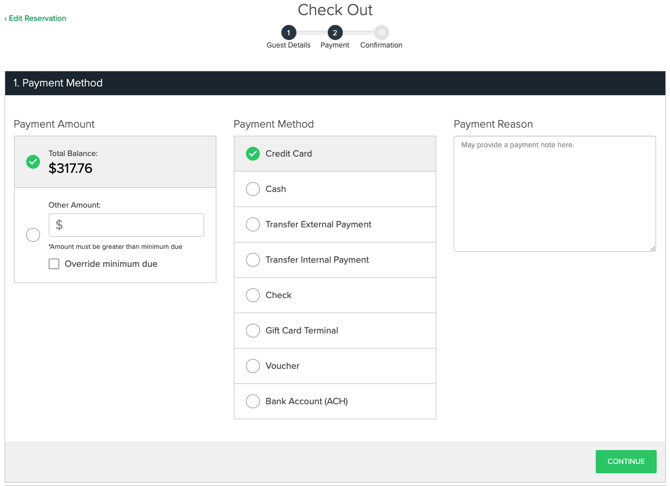
- Confirm the payment amount and select the Payment Method.
- Click Continue
Note: If the amount being paid differs from the Total Balance, use the "Override Minimum Due" option. If Overriding Minimum Due, enter the amount of the deposit in the "Other Amount" box.
8. Reservation Confirmation:
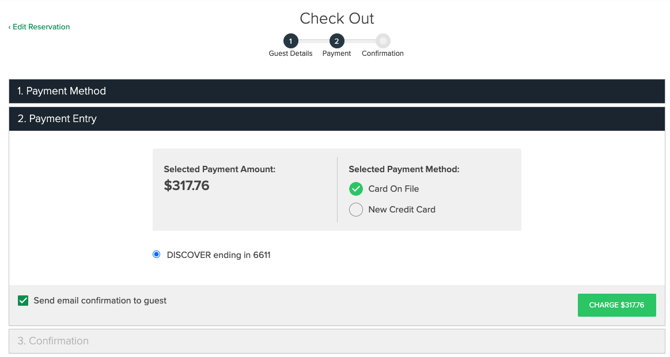
- Follow payment prompts based on the method selected.
- Choose to send an email confirmation.
- Click to green Charge button to process the payment.
After the payment is submitted, the reservation is confirmed and will show on your Reservation Grid and Reservation List.