.png?width=200&height=150&name=campspotlogo2019%20(1).png)
Summary:
In this article, you’ll learn the different ways to cancel a reservation in Campspot. If your parks uses the Online Cancelation feature, your guests may also process their cancelations if their reservations meet the correct criteria. This article focuses solely on how to cancel a reservation in the admin site as a park operator.
To skip ahead to the steps to canceling an entire reservation click [HERE].
To skip ahead to the steps to canceling one site or item on a reservation click [HERE].
Ready to learn more about reservation cancelations and other changes? Check out these related articles as well:
canceling entire reservation Step-by-Step Instructions:
Follow the guidance below to cancel a full reservation including all sites and add-ons.
Step 1: Locate the Reservation
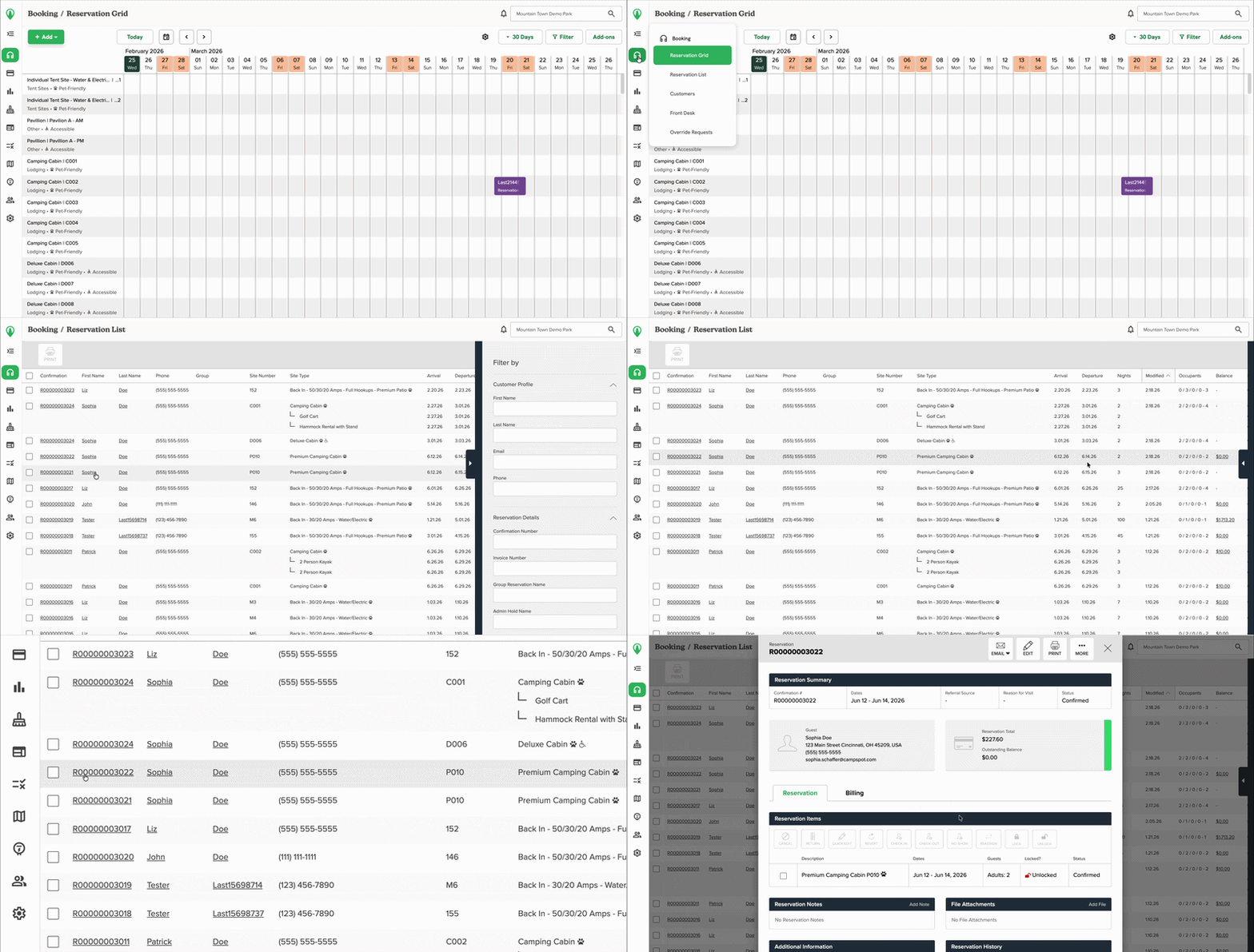
Navigate to the reservation summary by selecting the reservation block from the grid or the confirmation number from the reservation list.
The soundless clip below shows this action.
Step 2: Complete Cancelation
-
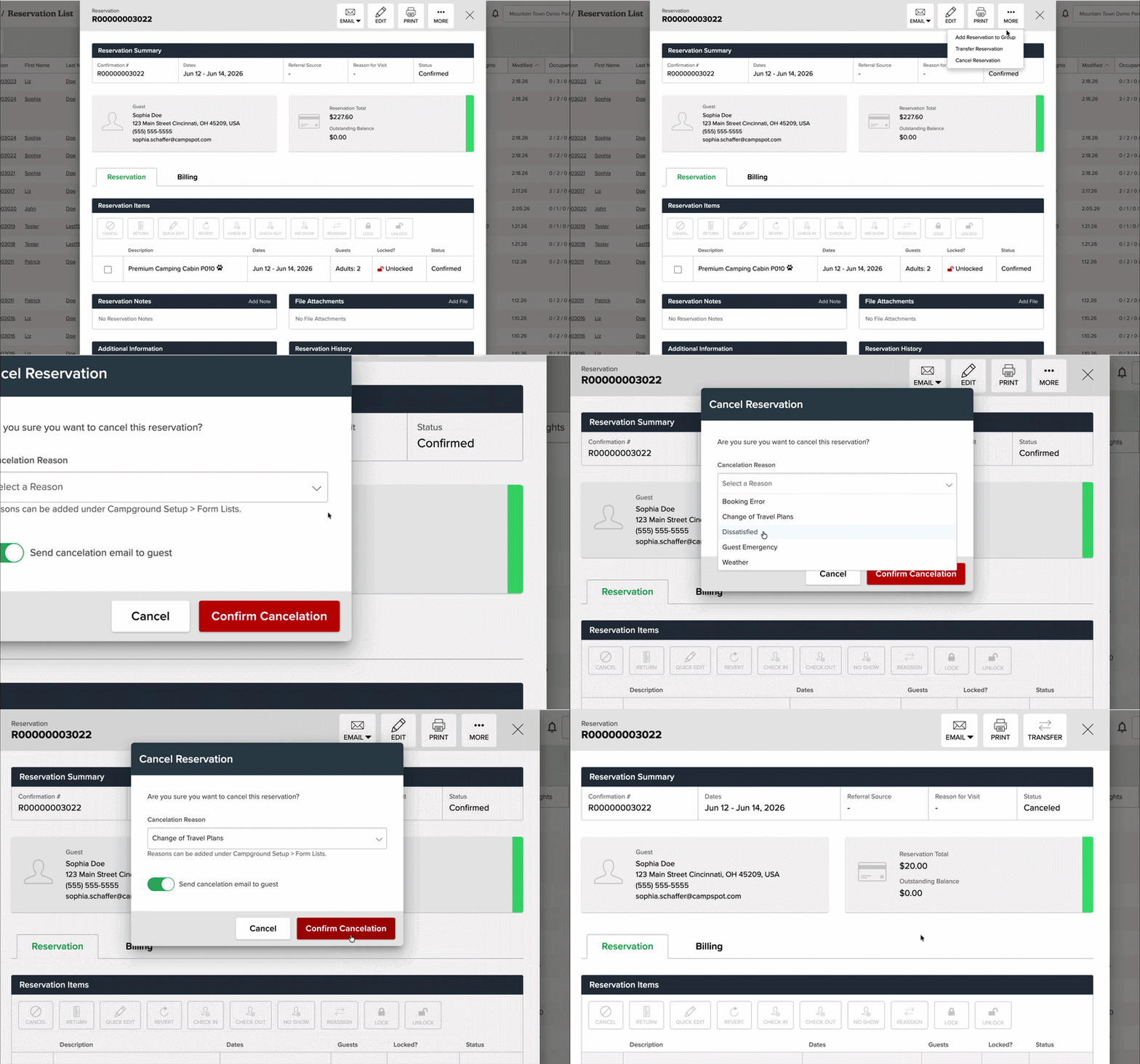
Click 'More' button at the top right corner of the reservation summary
-
Select 'Cancel Reservation' from the list that appears
-
Confirm whether to send a cancellation email to the guest and click red 'Confirm Cancelation' button.
Note: Your park may or may not require that a reason is selected.
The soundless clip below shows these steps.
Once the reservation is canceled:
-
The site becomes available on your reservation grid.
-
The reservation status updates to Canceled.
-
Any cancellation policies configured in your park setup may apply.
Note: Canceling a reservation does not automatically issue a refund. Refunds must be processed separately. To learn how to process a refund, visit the How To: Process a Refund From User Credit article.
canceling individual sites Step-by-Step Instructions:
Follow the guidance below to cancel individual sites or add-ons on a multi-site reservation.
Step 1: Locate the Reservation
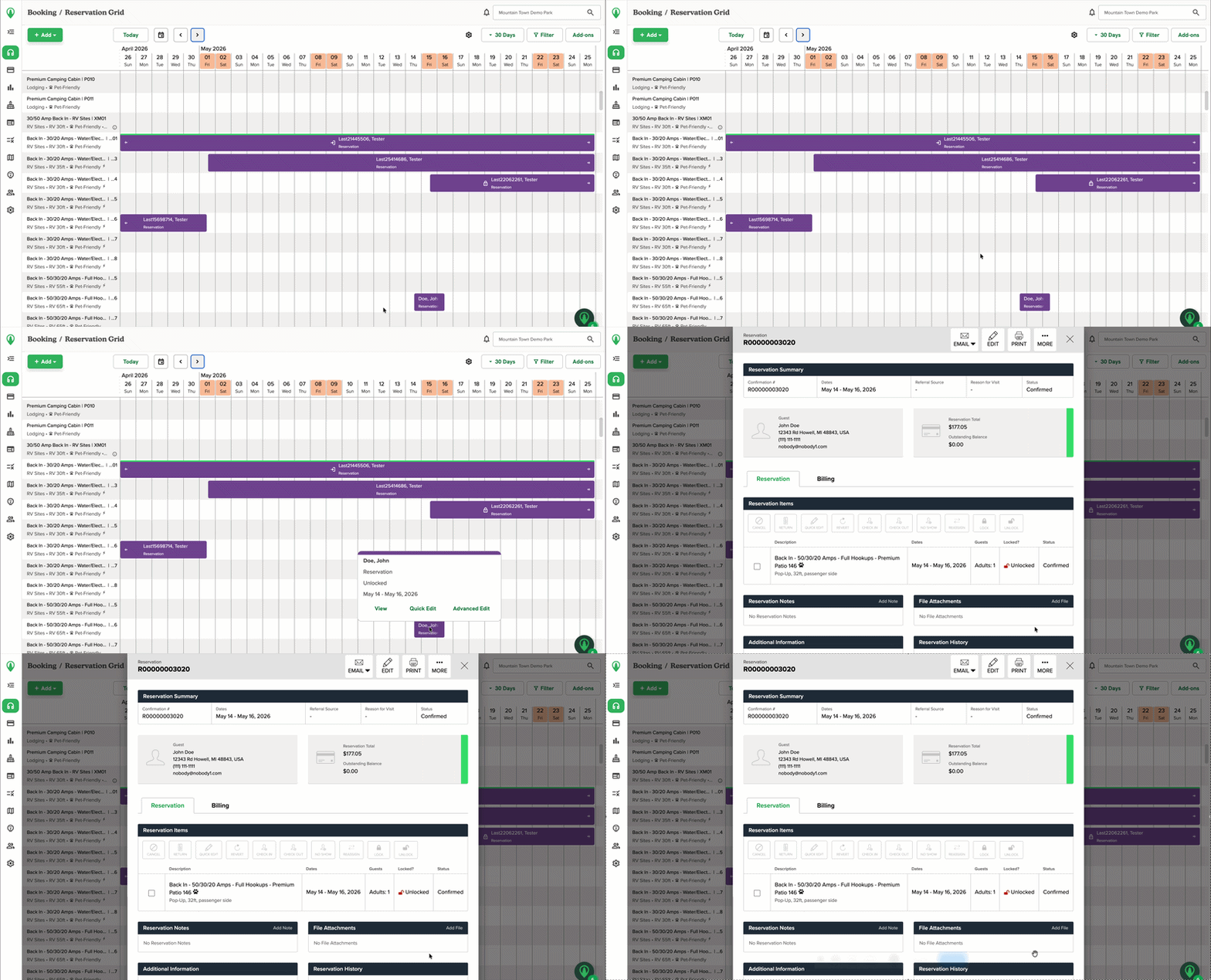
Navigate to the reservation summary by selecting the reservation block from the grid or the confirmation number from the reservation list.
The soundless clip below shows this action.
Step 2: Complete Cancelation
-
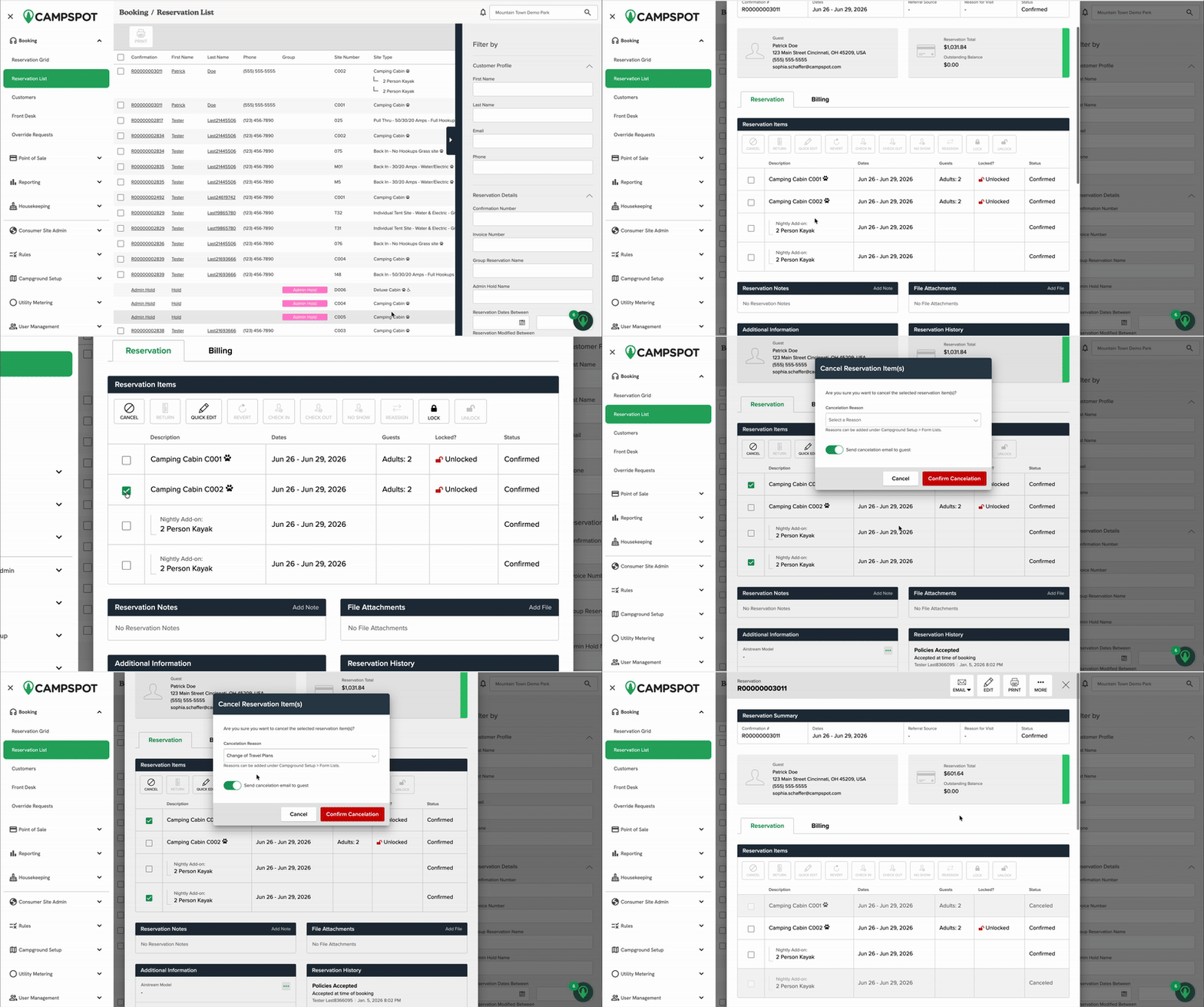
Select the site(s) or add-on(s) to cancel in the Reservation Items grid by clicking the checkbox in front of the item
-
Click the Cancel action button, now visible above the grid. When the Cancel Reservation Items pop-up appears, select the Cancelation Reason from the drop-down.
-
In the Cancel Reservation modal, select Cancel Reservation
-
Confirm whether to send a cancellation email to the guest and click red 'Confirm Cancelation' button.
The soundless clip below shows these steps.
To learn about handling funds after a reservation is canceled, visit the How To: Process a Refund from User Credit article.